
Connect your email
Connect Gmail, Outlook, Yahoo, iCloud or your business mailbox. Emails with your leads, contacts and companies appear on their records, and you reply from CRM with your own address.
When your mailbox is connected:
- emails to and from your leads, contacts and companies appear on their records, and on their open deals;
- the record's owner gets an alert when a customer replies;
- emails you write in CRM go from your own address, with a copy in your Sent folder.
Go to the menu at the top right and choose My email, then pick your provider.
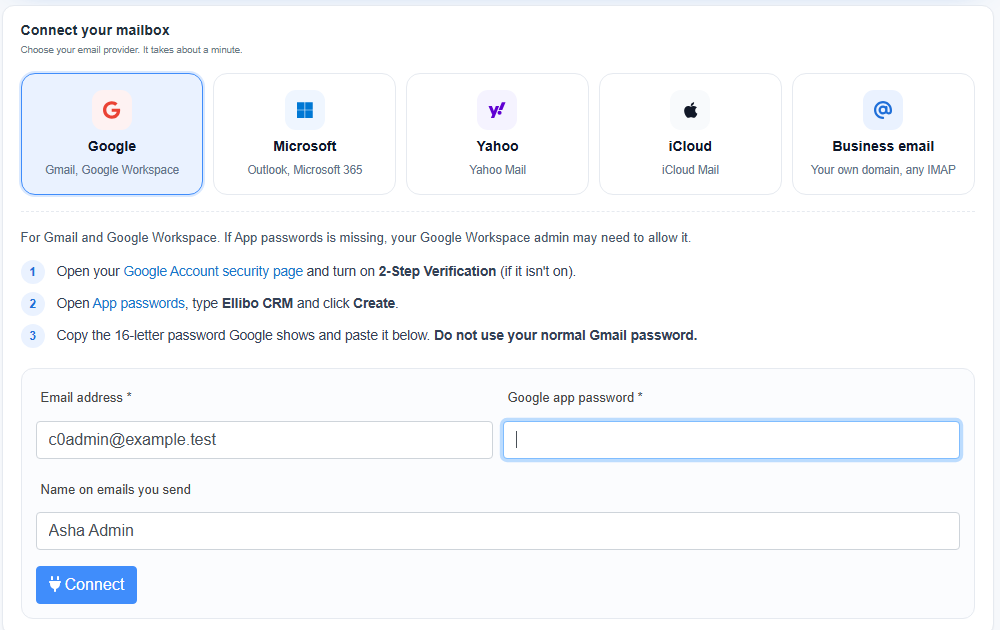
Google (Gmail, Google Workspace)
Google needs an app password, a separate password for one app. Don't use your normal Gmail password.
- Open your Google Account's Security page and turn on 2-Step Verification, if it isn't on.
- Open App passwords, type Ellibo CRM and click Create.
- Copy the 16-letter password, paste it in CRM and click Connect.
If App passwords is missing in Google Workspace, your Workspace admin needs to allow it.
Microsoft (Outlook.com, Hotmail, Microsoft 365)
Click Sign in with Microsoft and sign in on Microsoft's own page. Ellibo never sees your password, only a permission to read and send mail. You can withdraw it any time in your Microsoft account.
Yahoo and iCloud
Both need an app password:
- Yahoo: Account Security › Generate app password.
- iCloud: account.apple.com › Sign-In and Security › App-Specific Passwords.
Paste it in CRM and click Connect.
Business email (your own domain)
For email on your own domain, such as cPanel, GoDaddy or Hostinger, or any IMAP mailbox:
- Choose Business email.
- Enter the incoming server (IMAP) and outgoing server (SMTP). They're usually mail.yourdomain.com, with IMAP port 993 and SMTP port 465 (SSL). Your hosting panel shows them under Email Accounts › Connect Devices.
- Enter your mailbox password and click Connect.
Ellibo checks that both reading and sending work before it saves anything.
How Ellibo handles your email
- Only CRM emails are kept. Ellibo checks who each new email is from and to, and keeps only the ones with a lead, contact or company in your CRM. Personal, bank and other emails are left alone.
- From today on. Nothing older than the day you connect is copied.
- Your password stays locked. App and mailbox passwords are stored encrypted. Microsoft sign-in gives a token, never your password.
- Attachments stay in your mailbox. CRM shows their names and sizes. Open the email in your mailbox to download them.
- You decide who sees them. Switch off The team can read these emails on records, and only you, admins and managers can open them.
- Disconnect any time. The password or sign-in is deleted at once. Choose whether to keep or remove the emails it brought in.
Emails on a record
New emails appear within about 5 minutes, or straight away when you click Sync now on My email. On a lead, deal, contact or company, click Emails above the history to see only emails. A New label marks a reply you haven't opened.
Click an email to read it, then click Reply. Your answer goes from your mailbox and stays in the same conversation in the customer's email app.
Settings on My email
| Setting | What it does |
|---|---|
| Send the emails I write in CRM from this address | On: CRM emails go from your mailbox. Off: they go from the business, as before. |
| The team can read these emails on records | Off: only you, admins and managers can open them. |
| Sync now | Checks for new emails at once. |
| Disconnect | Stops reading the mailbox and deletes its password or sign-in. |
If it stops syncing
If your password changes or an app password is removed, My email shows Needs attention, and you get one alert. Click Disconnect, create a new app password, and connect again. The emails already kept stay on the records.