
Barcode and price labels
Print barcode labels with prices, weights and dates for your shelves and products, on a label printer roll or on sheets.
Print labels
- Go to Items › Items and click Print labels. You can also click Print labels on a package or a purchase receive to label exactly what came in.
- Add the items: scan them, or search under + Add item by name, SKU or barcode. Enter how many Labels you want for each.
- Choose the Label size, for example a 50 x 25 mm roll for a label printer or a sheet layout for an office printer.
- Choose the Barcode type. Automatic (recommended) uses EAN-13 or UPC-A for retail barcode numbers, and Code 128 for everything else.
- Choose the Price to print, for example Price with GST, or no price.
- Under Print on the label, tick what to show: Business name, SKU, Barcode, Batch & expiry, Net weight / quantity, Packed date, Best before and Licence no.
- Check the Preview and click Print labels.
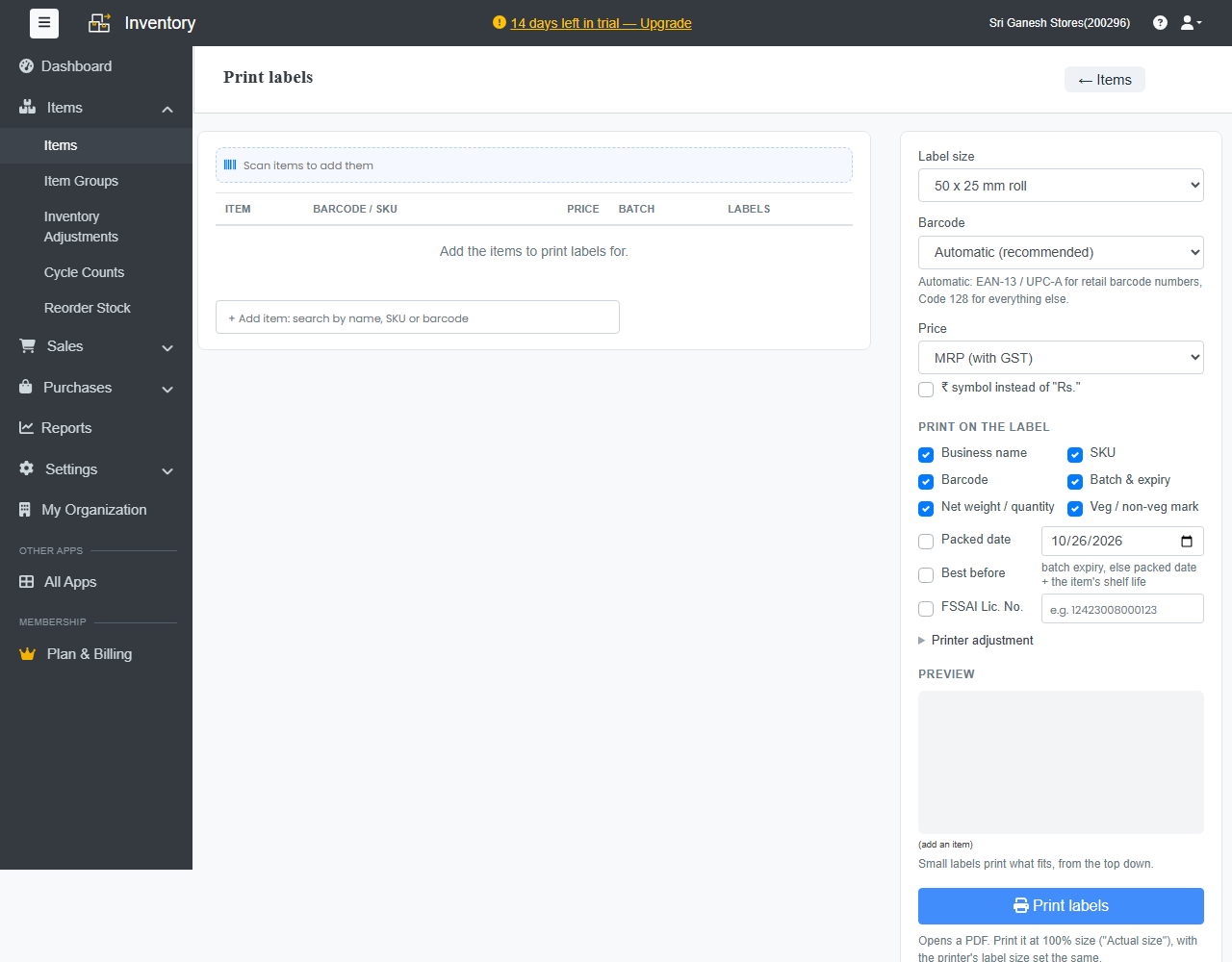
A PDF opens. Print it at 100% size (Actual size), with the printer's label size set the same.
Items without a barcode
Ellibo offers to Give them barcodes: it makes a barcode number for each item that doesn't have one, so you can label and scan them.
Dates and weights
- Best before uses the batch's expiry date, or else the packed date plus the item's Shelf life.
- Net weight / quantity comes from the item.
Fill these in on the item first. See Add items.
Labels not lining up?
Open Printer adjustment to nudge the print up, down, left or right, then print a test label.