
Get started with Inventory
Set up Inventory for your business and follow the setup guide from your first item to your first shipped order.
Ellibo Inventory keeps track of every item you buy, store and sell. It shares items, customers, vendors, invoices and bills with Ellibo Accounting, so your stock and your books always agree.
Set up Inventory
- Open Inventory from My Apps.
- Choose a business you already run on Ellibo and click Start Inventory, or create a new business. Only the business owner can start Inventory.
The setup guide
The Dashboard shows a setup guide until every step is done:
- Check your business details
- Check your warehouse: a main warehouse is ready. Rename it, or add more. See Warehouses and transfers.
- Add your items and opening stock
- Add your customers and vendors
- Order stock from a vendor
- Sell and ship your first order
- Invite your team
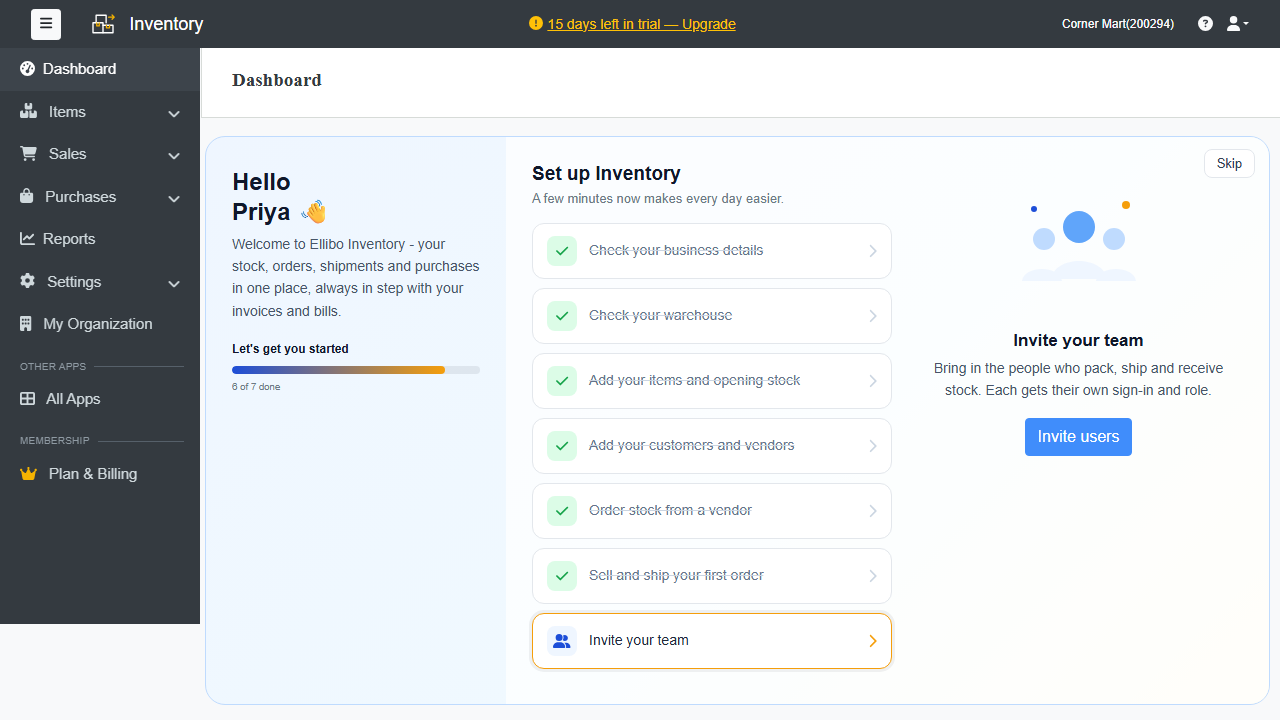
Below the guide, the Dashboard shows your sales activity (what to pack, ship and invoice), an inventory summary, and buttons for a new Sales order, Purchase order or Item.
Find your way around
| Menu | What's there |
|---|---|
| Items | Items, item groups, price lists, adjustments, cycle counts, assemblies and reorder stock. |
| Sales | Customers, sales orders, picklists, packages, shipments, delivery challans, invoices, payments received, sales returns and credit notes. |
| Purchases | Vendors, purchase orders, purchase receives, bills, landed costs, payments made, purchase returns and vendor credits. |
| Transfer Orders | Moving stock between warehouses (shown when you use more than one). |
| Reports | Stock, sales, purchases and activity. |
| Settings | Business settings, users, import / export and integrations. |
Some menu items appear only after you turn the feature on in Inventory settings.