
Subscriptions reports
Your recurring revenue and SaaS numbers, how revenue moves, cohorts, who left and why, revenue earned over time, failed payments recovered, and what's still unpaid.
Go to Reports and click a report. Each one can be downloaded to Excel.
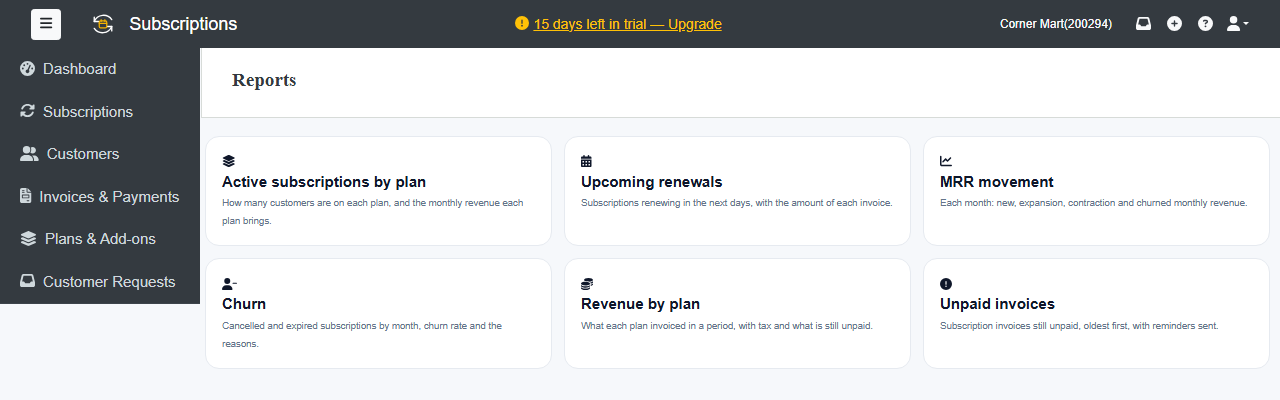
| Report | Shows |
|---|---|
| Active subscriptions by plan | How many customers are on each plan, and the monthly revenue each plan brings. |
| SaaS metrics | MRR, ARR, ARPU, churn, net revenue retention, lifetime value and trial conversion: now, and month by month. |
| MRR movement | Each month: new, expansion, contraction and churned monthly revenue. |
| Cohorts | Customers grouped by the month they started: how many still pay, and how much revenue stays, month after month. |
| Churn | Cancelled and expired subscriptions by month, the churn rate, and the reasons with the revenue each took away. |
| Revenue recognition | What was invoiced, what was earned over each period, and what's still to be earned (deferred), month by month. |
| Revenue by plan | What each plan invoiced in a period, with tax, and what's still unpaid. |
| Upcoming renewals | Subscriptions renewing in the next days, with the amount of each invoice. |
| Failed payment recovery | Automatic payments that failed, and how many were recovered by retries or paid another way. |
| Unpaid invoices | Subscription invoices still unpaid, oldest first, with reminders sent. |
All reports except Active subscriptions by plan and Unpaid invoices are part of the Professional plan and above.
The SaaS numbers
- MRR (monthly recurring revenue): what your subscriptions bring in a month, before tax. A yearly plan counts one twelfth. Coupons that last come off; one-off charges and usage don't count.
- ARR: MRR x 12.
- Paying customers: customers whose subscriptions' MRR is above zero. Trials, paused and free subscriptions don't count.
- ARPU: MRR divided by paying customers.
- Customer churn: the share of the month's paying customers who stopped paying by its end. The top of the report shows the average of the last 3 whole months.
- Revenue churn: MRR lost in a month (cancellations and downgrades) against the MRR at its start.
- Net revenue retention (NRR): what customers paying a year ago pay now, with upgrades and downgrades, against what they paid then. Above 100% means existing customers grow your revenue by themselves.
- Gross revenue retention (GRR): the same without upgrades, so 100% at most.
- Lifetime value (LTV): ARPU divided by monthly customer churn. It shows once some customers have left.
- Trial conversion: of the trials that ended in the last 90 days, how many became paying.
Cohorts
Each row is the customers whose first paid subscription started that month. Month 1 is how many still paid at the end of that month, and +1, +2 and so on are the months after. Switch to Revenue kept (MRR) to see revenue instead of customers; it can go above 100% when customers upgrade. Darker cells mean more customers or revenue kept.
Revenue recognition
Subscriptions are billed in advance, so an invoice for a year is earned over that year: one twelfth a month, counted day by day.
- Invoiced: subscription invoices less credit notes, by their date.
- Recognised: what was earned in the month. Setup fees, one-time charges, usage and one-off charges are earned on the invoice date. A credit note for unused days takes off the days it gives back.
- Deferred: invoiced so far but not yet earned, at the end of the month.
Months still to come show what will be earned from invoices already made. Amounts are before tax, in your currency. Your books keep income on the invoice date; this report shows when it is earned.
Failed payment recovery
For subscriptions paid automatically: each failed payment by the month it first failed, and what became of it. It may have been recovered by a retry, paid another way (Pay now, a payment you recorded, or credit), still be retried, or be left unpaid with no more tries. Recovery rate is the share recovered, and Recovered on shows which try worked.
Weekly summary
Admins can get a summary email every Monday. Turn it on under Settings › Emails › Weekly summary.