
Add items
Add the goods and services you buy and sell with their codes, prices, tax, opening stock and reorder level.
Add an item
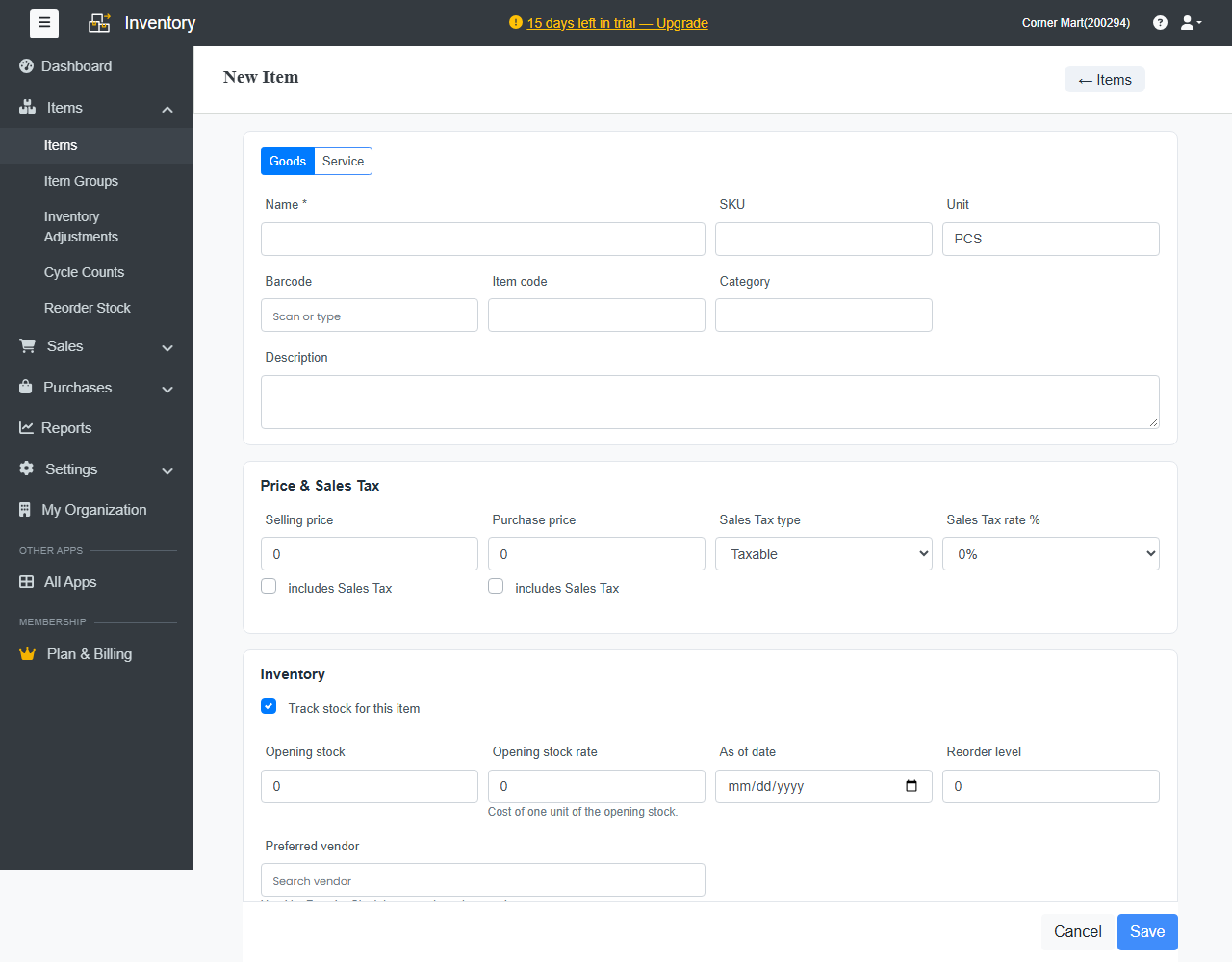
- Go to Items › Items and click + New Item, or click + Item on the Dashboard.
- Choose Goods or Service.
- Enter the Name, and if you use them, the SKU, Unit, Barcode (scan or type it), Item code, Category and Description.
- Under Price & Sales Tax, enter the Selling price and Purchase price. Tick includes tax if a price already includes tax. Choose the Tax type and rate.
- Under Inventory, leave Track stock for this item ticked for goods you count. Enter the Opening stock, its Opening stock rate (the cost of one unit), the As of date and a Reorder level.
- Choose a Preferred vendor. Reorder Stock uses it to suggest purchase orders.
- Optional, under Weight, size & label: Net weight / quantity printed on the pack, Shipping weight, Shelf life (best before = packed date + shelf life) and Dimensions.
- Click Save.
The item page
Open an item to see its Stock by warehouse (and by bin), the Batches in stock and Serial numbers in stock if you use them, and its Stock history: every transaction that moved it. The Items list shows each item's On hand, Committed (to open sales orders) and Available stock.
Items shared with Accounting
Items you add in Inventory are the same items in Ellibo Accounting and on CRM quotes, and the other way round. Stock stays in step whichever app you use.