
Sales orders
Record what a customer has ordered, reserve the stock, then pack, ship and invoice it step by step.
Create a sales order
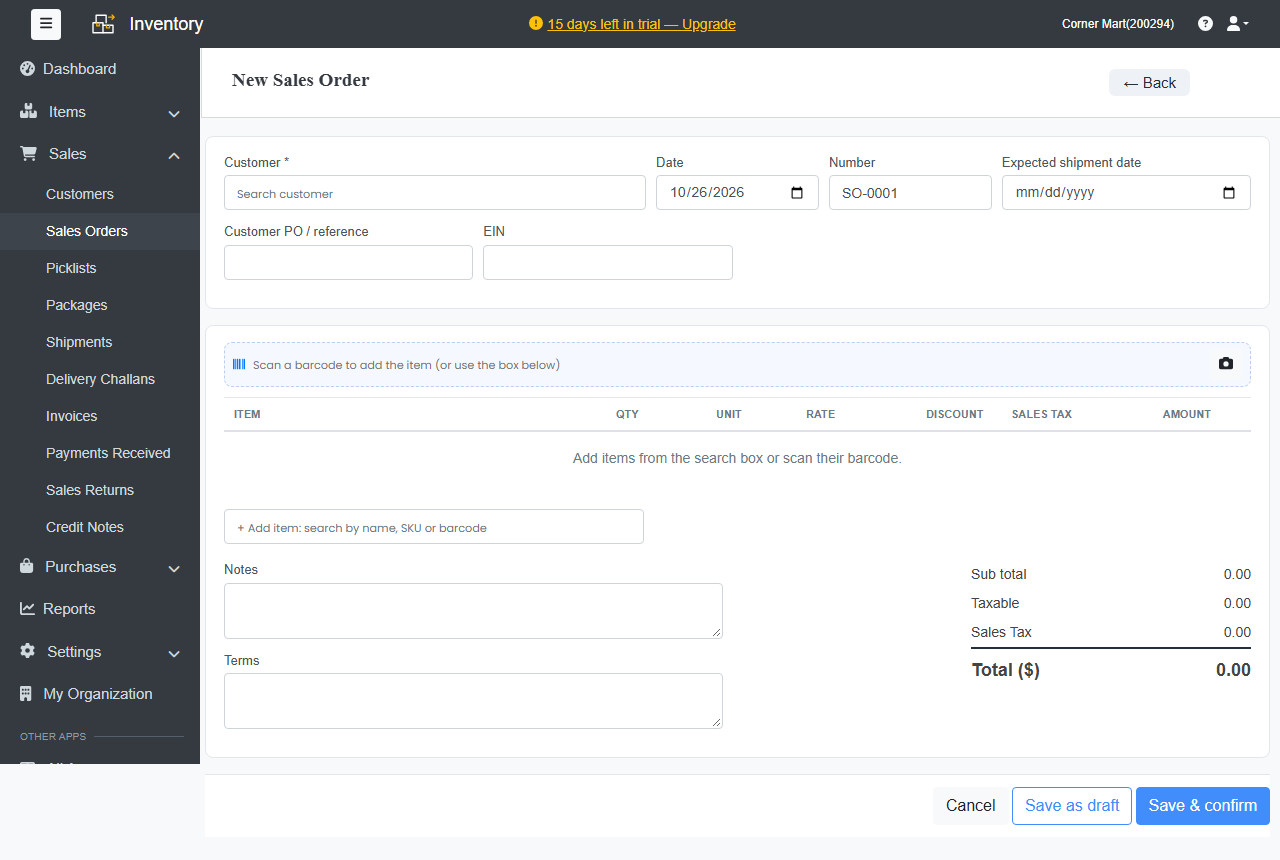
- Go to Sales › Sales Orders and click + New Sales Order, or click + Sales order on the Dashboard.
- Choose the Customer and check the Date and Number. Add the Expected shipment date and the Customer PO / reference if you have them.
- Add the items: scan their barcodes, or search under + Add item by name, SKU or barcode. Set the quantity, rate and discount. The rate comes from the item, or the customer's price list.
- Add Notes and Terms if you like.
- Click Save & confirm, or Save as draft to finish later.
Once confirmed, the ordered quantity is committed: it still counts as on hand, but not as available, so you don't sell it twice.
What happens next
The order page shows its progress: Confirmed › Packed › Shipped › Invoiced, and a table with what's been packed, shipped and invoiced for each line. Use the buttons at the top:
| Button | Next step |
|---|---|
| New Package | Pack some or all of the items. See Picklists, packages and shipments. |
| Create Invoice | Bill the customer for what's ready. |
| Sales Return | Record goods that came back. |
You can pack, ship and invoice in parts. The order stays open until everything is done.
Not enough stock?
If the order needs more than you have, Ellibo offers to Backorder them or Dropship. See Dropship and backorders.
Approvals
If sales orders need approval, orders from people who aren't approvers wait until an approver approves them. They get their number then. See Approvals and users.