
Create a sales invoice
Bill a customer with a GST invoice, take a payment on the spot if they pay now, then print, email or share it.
Create the invoice
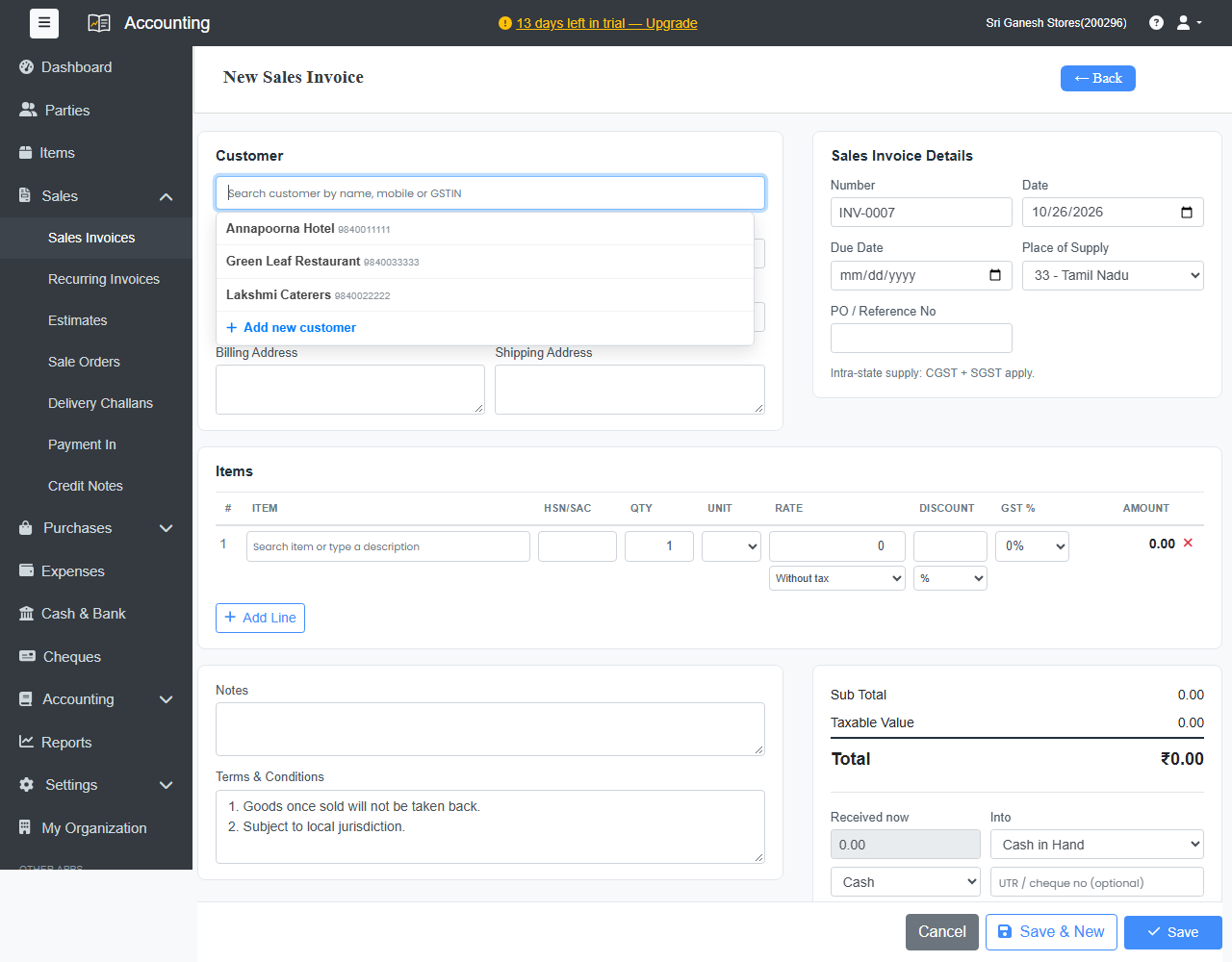
- Go to Sales › Sales Invoices and click + New Sales Invoice, or click + Sales Invoice on the Dashboard.
- Under Customer, search by name, mobile or GSTIN and pick the customer. New customer? Type the name and click + Add new customer. For a walk-in sale, leave it empty and the invoice is made out to Cash Sale.
- Check the Number, Date and Due Date. The due date comes from the customer's credit period. Add a PO / Reference No if the customer gave you one. Check the Place of Supply. Ellibo shows whether the invoice gets CGST + SGST (your state) or IGST (another state).
- Under Items, search for an item or type a description. For each line, set the Qty, Unit, Rate, Discount (an amount or %) and GST %. Choose Without tax or With tax under the rate. Click + Add Line for more lines.
- Add Notes if you like. The Terms & Conditions come from your settings.
- If the customer pays now, enter the amount under Received now, choose where the money goes (Into) and how it was paid.
- Click Save, or Save & New to start the next invoice.
After saving
The invoice opens with these buttons:
| Button | What it does |
|---|---|
| Edit | Change the invoice. Every change is kept in its history. |
| PDF / Print | Download or print the invoice. |
| Email the invoice to the customer with the PDF attached. | |
| Receive Payment | Record a payment against this invoice. |
| Remind | Send a payment reminder. |
| Make recurring | Create the same invoice automatically every week, month or year. |
| Credit Note | Record a return or a reduction against this invoice. |
| Cancel | Cancel the invoice. It stays in your records, marked as cancelled. |
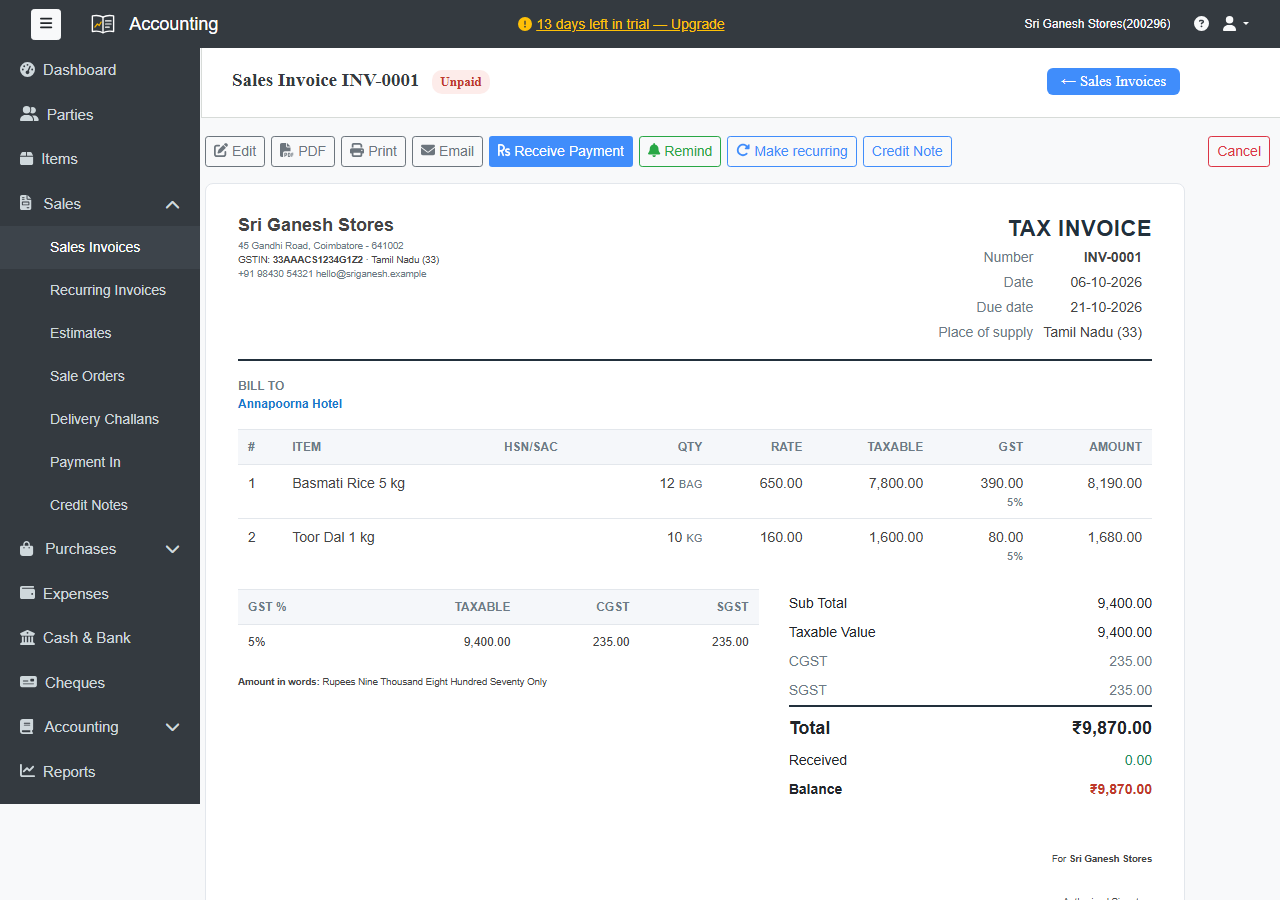
The badge next to the number shows whether it's unpaid, partly paid or paid. On the invoice list, filter by Unpaid, Overdue, Paid or Cancelled.
Good to know
- Saving an invoice updates the customer's balance, your sales and tax figures and, for tracked items, your stock.
- Ellibo invoices from POS, CRM and Inventory appear here too, so all your sales are in one place.
- Free plan: up to 50 sales invoices a month. Paid plans have no limit.