
Bill at the counter
Scan or pick products, take payment and print the receipt. This is the quick billing flow for retail stores.
Before you start
- Add your products.
- Open the day, if you use Day Close. See Open and close the day.
Make a sale
Click POS under Sales channel in the left menu. The billing screen opens on In-Store.
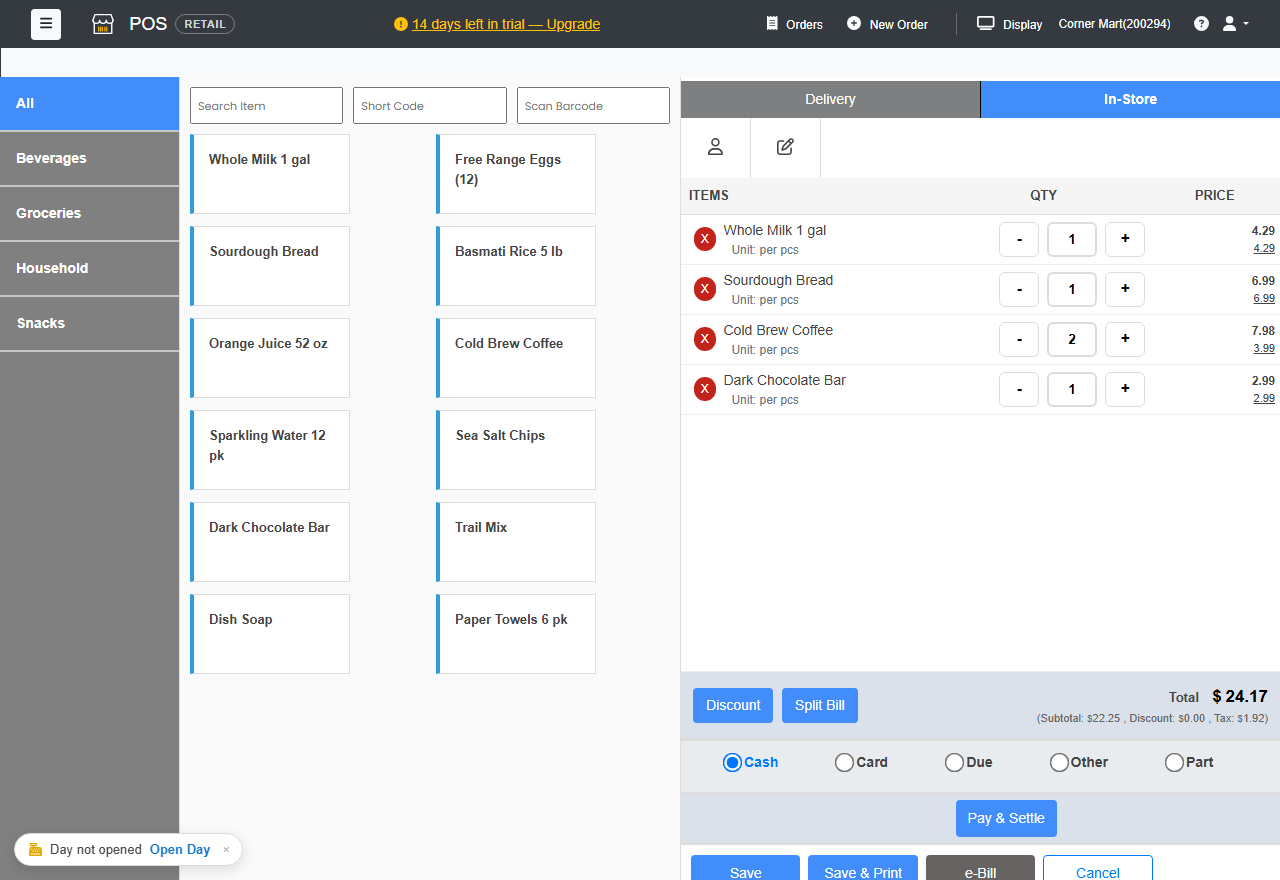
Add products in any of these ways:
- Scan Barcode: scan the product with a barcode scanner. The cursor waits in this box.
- Search Item: type part of the name.
- Short Code: type the product's short code.
- Tap the product, after choosing a category on the left if you like.
- Change quantities with - and +, or type the number. To remove a line, click the red X.
Optional:
- Click the person icon to add the customer. You need a customer for a Due (pay later) bill.
- Click the pencil icon to add a note to the order.
- Click Discount to take an amount or a percentage off.
- Choose how the customer pays: Cash, Card, Due, Other or Part. See Payments and discounts.
- Click Pay & Settle. Check the amount, add the payment, and click Finalize & Settle.
The receipt prints if your printer is set up, and the screen clears for the next customer.
The other buttons
| Button | What it does |
|---|---|
| Save | Keeps the order open without payment, for example while the customer picks one more item. Find it again under Orders in the top bar. |
| Save & Print | Saves the order and prints the bill. |
| e-Bill | Emails the bill to the customer. If the customer has no email saved, POS asks for one. |
| Cancel | Clears the screen without saving. |
Favorites
Put the items you sell most in one place. Tap the star on any item to add it to Favorites at the top of the category list; tap it again to take it off. Every counter and tablet of your business shows the same list, in the order the items were added. Captains see Favorites but can't change them.
Favorites are off until you switch them on: go to Settings › Billing Settings › Features, tick Favorites on the POS and click Save. Untick it to hide them again.
Delivery orders
Click Delivery at the top of the order panel and add the customer, then bill as usual.
Invoices
Retail stores can also make a full invoice, for example for a business customer. Go to Sales › Invoices. Invoices use the settings under Settings › Invoice Settings.