
Set up taxes
Add the tax rates you charge, group them, pick a group on each product, and print your tax number on every bill.
POS works out tax on every bill from three things: tax rates, tax groups, and the tax group chosen on each product.
For example, a single VAT 20% or Sales Tax 8.875% rate in its own group. If you charge two taxes together, such as a state and a city tax, put both rates in one group.
1. Add your tax rates
- Go to Taxes › Tax Rates and click + New.
- Enter the Tax Name, for example VAT.
- Choose the Tax Type: Percentage (%) or Fixed Amount.
- Enter the Tax Rate, for example 20.
- Save. Repeat for each rate.
2. Group them
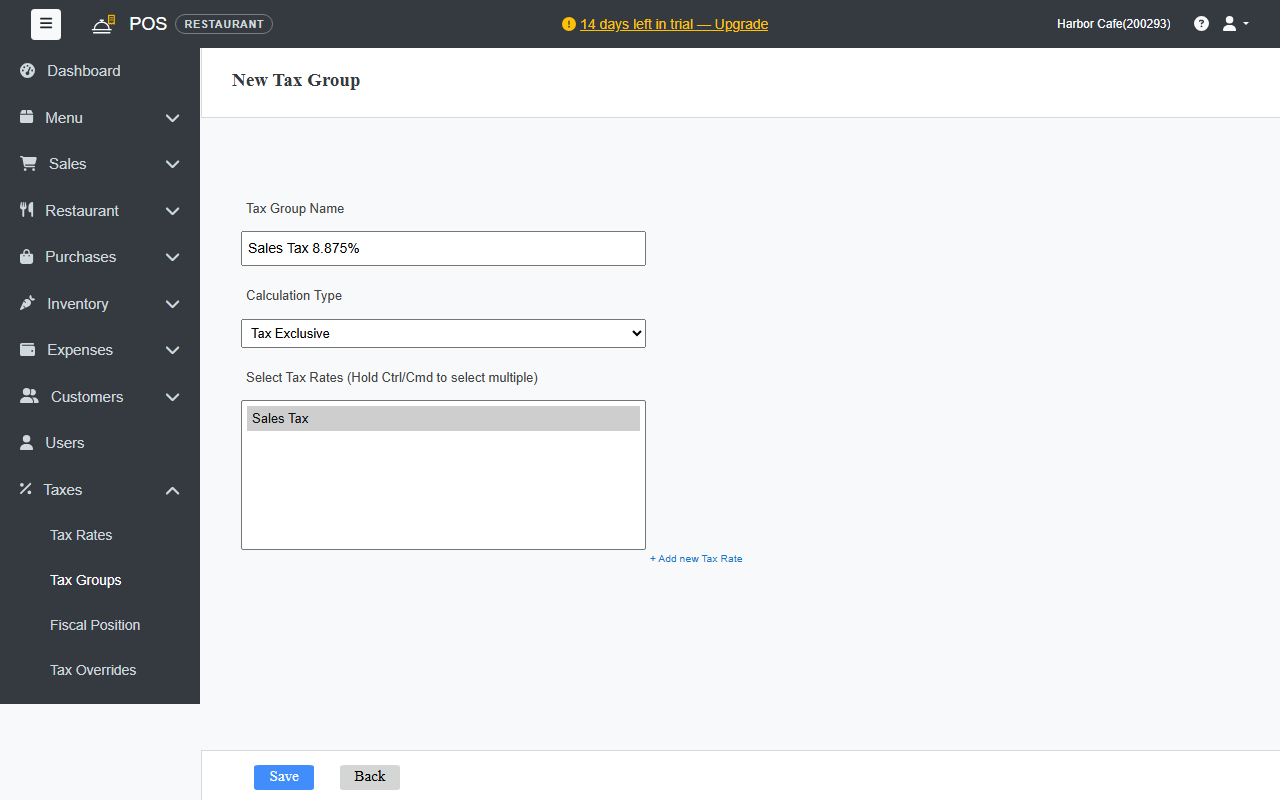
- Go to Taxes › Tax Groups and click + New.
- Enter the Tax Group Name, for example VAT 20%. This is the name you'll pick on products.
Choose the Calculation Type:
- Tax Exclusive: prices don't include tax. Tax is added on top at the bill.
- Tax Inclusive: prices already include tax. The bill shows how much of the price is tax.
- Under Select Tax Rates, click the rates that belong in the group. Hold Ctrl (or Cmd on a Mac) to pick more than one.
- Click Save.
3. Pick a group on each product
Open each product in Menu › Products and choose the Tax Group. A product without a group is sold without tax. To set many products at once, use the Tax Group column when you import products.
4. Print your tax number
- Go to Settings › Regional & Tax Settings.
Under Tax Invoice, enter:
- Tax ID label: the name of your tax number, for example VAT No, ABN or TRN.
- Tax registration number: your number.
- Receipt title: printed at the top of the receipt, for example TAX INVOICE.
- For tax-inclusive prices, you can turn on the line Total includes VAT of … under the total.
- Click Save Changes. The Preview shows how the top of your receipt will look.
Check your tax
The Tax Liability report under Reports shows the tax collected for any period, rate by rate.
Tax rules differ by business and place. Check the rates you should charge with your tax adviser.