
Email invoices and payment reminders
Email invoices with the PDF attached, send a reminder in one click, or let Ellibo remind customers about unpaid invoices automatically.
Email an invoice
- Open the invoice and click Email.
- Check the customer's email address. Add a CC if you like, and check the Subject and Message. If the customer has no email saved, tick Save this email to their record.
- Click Send.
The window also lists when the invoice was Sent before.
The customer gets the invoice as a PDF. If they reply, the reply goes to the email address in Business Settings › Business. The invoice's history shows when it was emailed.
Send a reminder
Click Remind on an unpaid invoice, or on the customer's page to remind them about everything they owe. The reminder lists the amount due and has the invoice attached.
Automatic reminders
Ellibo can email customers about unpaid invoices for you. This is part of the Standard plan and above.
- Go to Settings › Business Settings › Reminders & Emails.
- Turn on Email customers about unpaid invoices automatically.
Choose when to send:
- so many days before the due date
- On the due date
- so many days after the due date
- then again every so many days while unpaid, up to 6 times
- Click Save Settings.
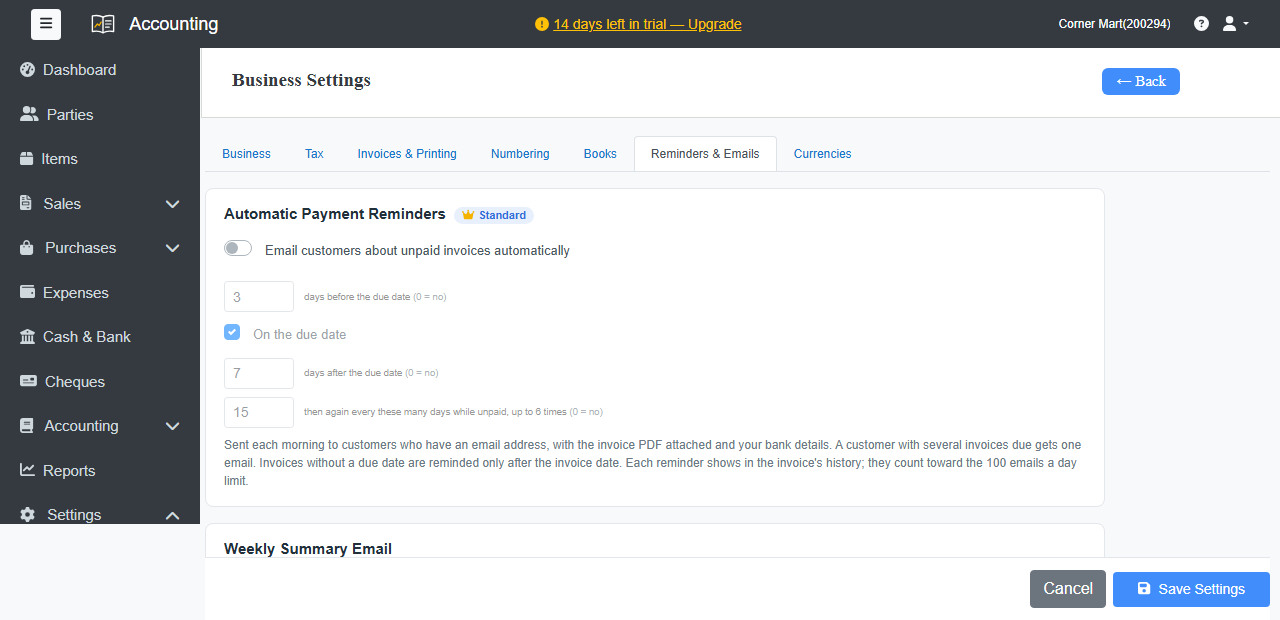
Reminders go out each morning to customers who have an email address, with the invoice PDF and your bank details attached. A customer with several invoices due gets a single email. Each reminder is noted in the invoice's history.
Emails count toward your plan's daily email limit. The Free and Standard plans include 100 a day.