
Add products
Add what you sell with its price, category, tax and code, so it shows on the billing screen.
In POS, everything you sell is a product: a dish, a drink, a packet of rice or a service.
Before you start
- Create your categories first, such as Starters and Main Course. You can also add one from the product form. See Categories, variations and add-ons.
- Set up your tax rates and tax group. See Set up taxes.
Add a product
- Go to Menu › Products and click + New.
- Enter the Product Name.
Choose the Product Type:
- Simple Product: one price, for example a Cappuccino.
- Variable Product: different sizes or portions, each with its own price. Choose the Product Variation, such as Size, and enter a price for each option.
Enter the Price.
- Cost Price (optional): what one unit costs you. The Profit & Loss report uses it when the product has no purchase recorded (restaurants: no recipe). Each variation has its own.
- Choose the Category. To make a new one, click + Add new Category.
Fill in the optional fields you use:
- Unit of Measurement: for example kg, ml or pcs.
- Print Name: a shorter name for receipts and KOTs. If you leave it empty, the product name prints.
- HSN Code: the HSN or SAC code for GST returns.
- Stock and Reorder Level: opening stock, and the level at which you want to reorder. Stock goes down with each sale when stock tracking is on in Billing settings.
- Weight (kg)
- Tax Group: the tax charged on this product.
- Short Code: a unique number or code that cashiers can type on the billing screen to add the product fast.
- Barcode: scan or type the barcode printed on the product.
- Food Type (restaurants): Vegetarian, Non-Vegetarian or Eggetarian. It shows as a coloured edge on the product's button.
- Product Image
- Available Addons (restaurants): extras the customer can add, such as extra cheese.
- Click Save.
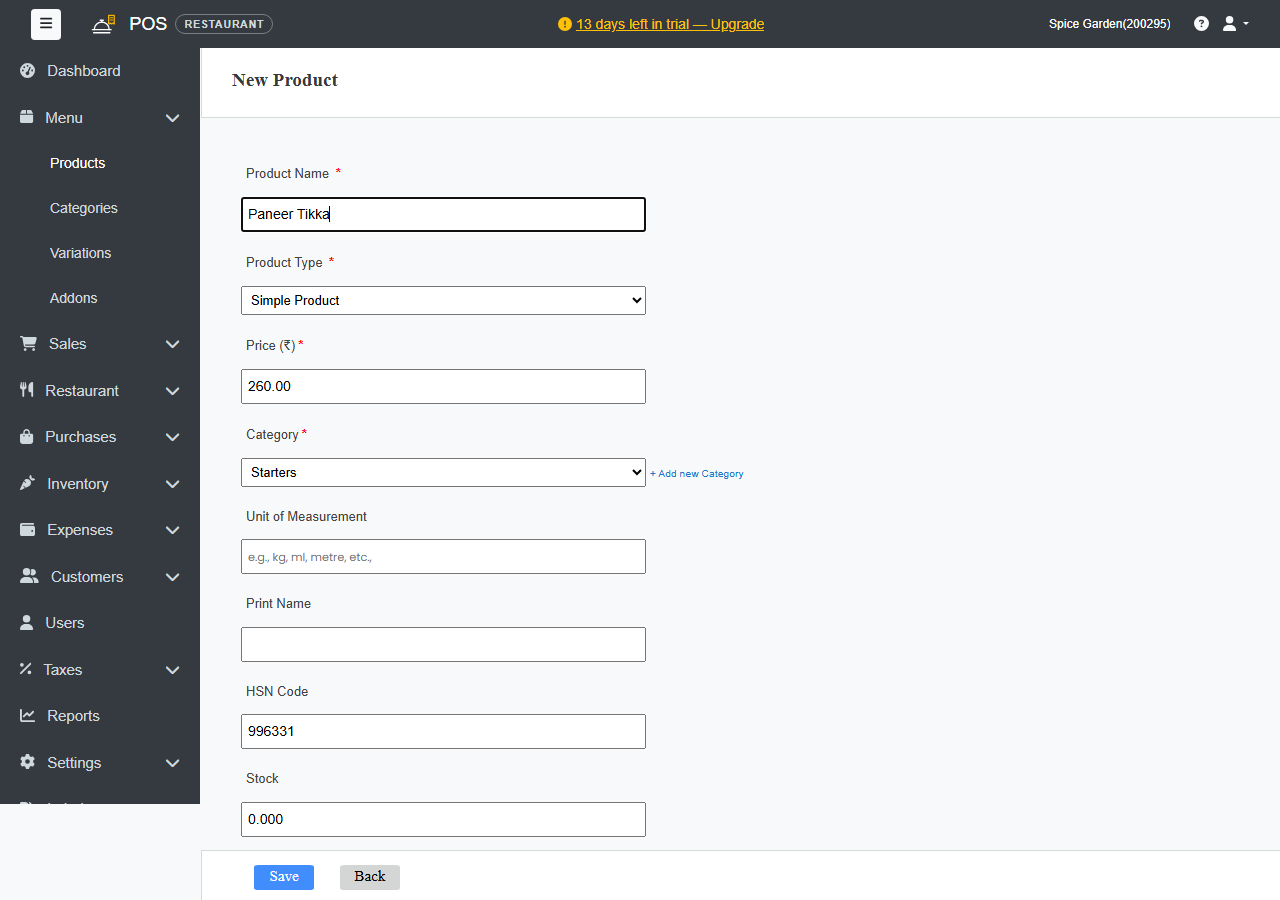
The product appears on the POS billing screen straight away, under its category.
Edit or remove a product
Go to Menu › Products and click the product. Change the details and click Save. Price changes apply to new bills only. Bills you've already made keep their price.
Damaged, expired or lost stock
With stock tracking on, record stock that leaves without a sale on Menu › Stock Adjustments, so it shows on the Profit & Loss report:
- Choose the Reason: Damaged / broken, Expired, Lost / theft, Own use / samples, Physical stock count or Found / extra stock.
- Check the Date, and add Notes if you like.
- Type each product's name and pick it from the list, then enter the quantity. For a Physical stock count, enter the quantity you counted. POS posts the difference.
- Click Save adjustment.
Stock changes straight away, and each line keeps its cost at that moment. Damaged, expired, lost and own-use stock shows as Stock written off. Counts and found stock show as Stock count differences. Made a mistake? Click Undo in Recent adjustments.
Changing the Stock number on the product form still works, but the change isn't treated as a loss on the report.
Restaurants using Inventory › Raw Materials: ingredients are counted and written off on Inventory › Stock Entries, not here. For things you buy and sell as they are, such as bottled water or soft drinks, you can add them as a raw material in pcs with a recipe of 1 pcs. Each sale then uses one, and a broken bottle goes in as Wastage on Stock Entries.
Tips
- Give your most-sold products short codes such as 1, 2 and 3. Cashiers type the code instead of searching.
- Fill in Cost Price for products you don't buy through POS Purchases, so the Profit & Loss report has a cost for them.
- Have a long list already? Import products from Excel.