
KOT stations and Kitchen Display
Send each category's kitchen ticket to its own station, such as the bar or the grill, or show orders on a kitchen screen instead of paper.
KOT stations
By default every KOT prints at one kitchen printer, Station 1. If you have more than one kitchen section, send each category to its own station.
- Go to Restaurant › KOT Stations.
- Next to each category, choose its Kitchen Station, for example Drinks on Station 2 for the bar.
- Click Save.
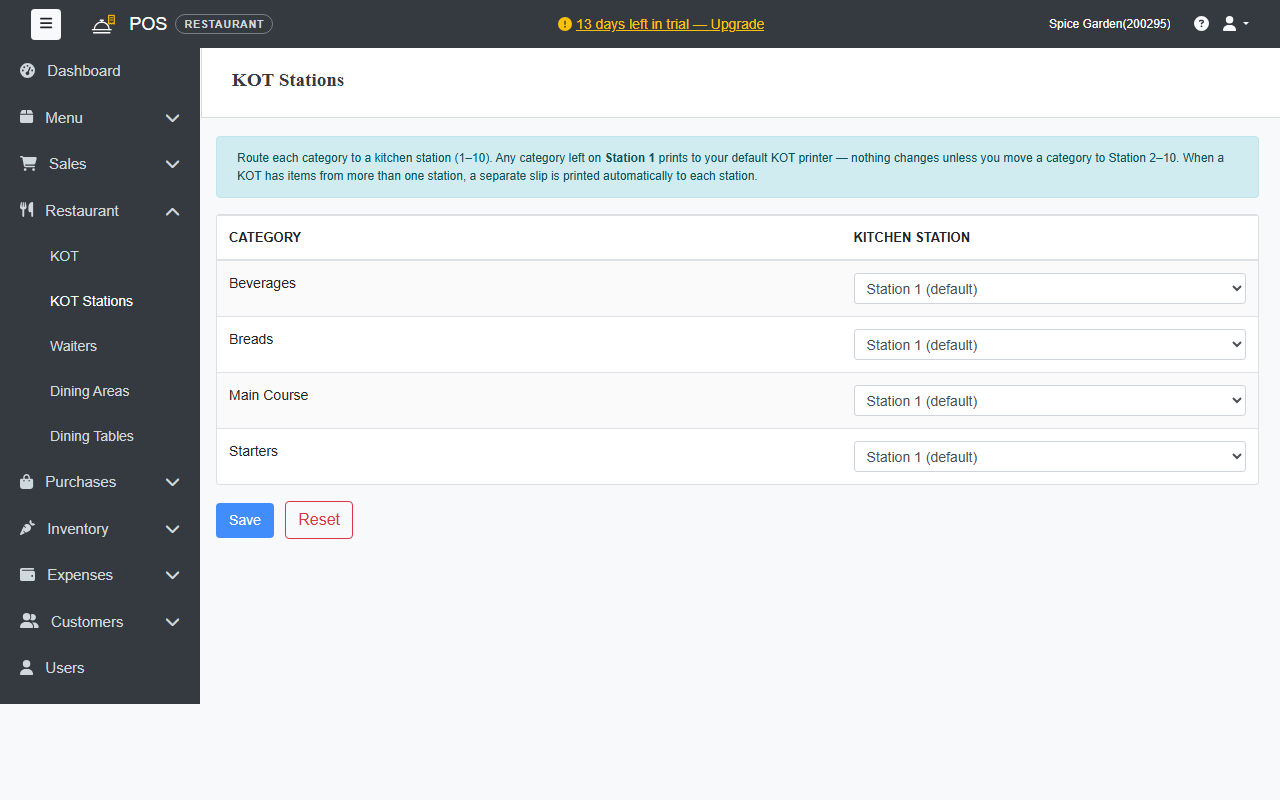
When an order has items from more than one station, a separate slip prints at each station.
Then, in the IoT Box, choose a printer for each station you use.
Click Reset to put every category back on Station 1.
Name your stations
Under Station Names, give each station you use a name, such as Grill, Bar or Desserts, and click Save. The names show on the Kitchen Display. A station without a name shows as Station 1, Station 2 and so on.
Kitchen Display
Instead of printing KOTs, the kitchen can see orders on a screen, such as a TV or a tablet.
- On the kitchen screen, sign in to POS and click Kitchen Display under Sales channel.
- New orders appear as soon as a KOT is sent. The kitchen moves each order from Pending to Cooking to Ready. Use the buttons at the top to filter by status.
Items that are done show a green Ready under them.
One screen per station
When you use more than one station, each section of the kitchen can have its own screen:
- Open the Kitchen Display on that section's screen.
- At the top, choose the station, for example Bar, instead of All stations. The screen remembers the choice.
That screen shows only its own items on each ticket, and the cooks there mark them Cooking and Ready. A ticket is Ready for the waiter when every station on it has finished. A station can remove only its own items. To cancel a whole ticket, use All stations.
On the POS, the KOT shows one status for the whole ticket.
Cancelled items on slips
When the kitchen removes an item from a KOT, for example because it ran out, a reprint of that KOT marks the item ** CANCELLED **. The KOT details show each item's status: Cooking, Ready or why it was cancelled.
The bill doesn't change by itself when the kitchen removes an item. Remove the item from the order on the POS.
The Kitchen Display and multi-station KOTs are part of the Professional plan and above.
KOT list
Restaurant › KOT lists every KOT with its table, items and time. Click Print to print one again, or open it to see its details.