
Cloud printing for tablets
Let tablets, iPads and phones print bills, KOTs and labels on the printers connected to your Organization PC.
With cloud printing, a tablet sends its prints over the internet to the IoT Box on your Organization PC, and the IoT Box prints them. The tablet doesn't need a cable or a printer driver.
Before you start
Install and set up the Ellibo IoT Box on the Windows PC your printers are connected to.
1. Add your counters
A counter is a billing point, such as Counter 1 or Bar. Each counter's receipts can go to its own printer.
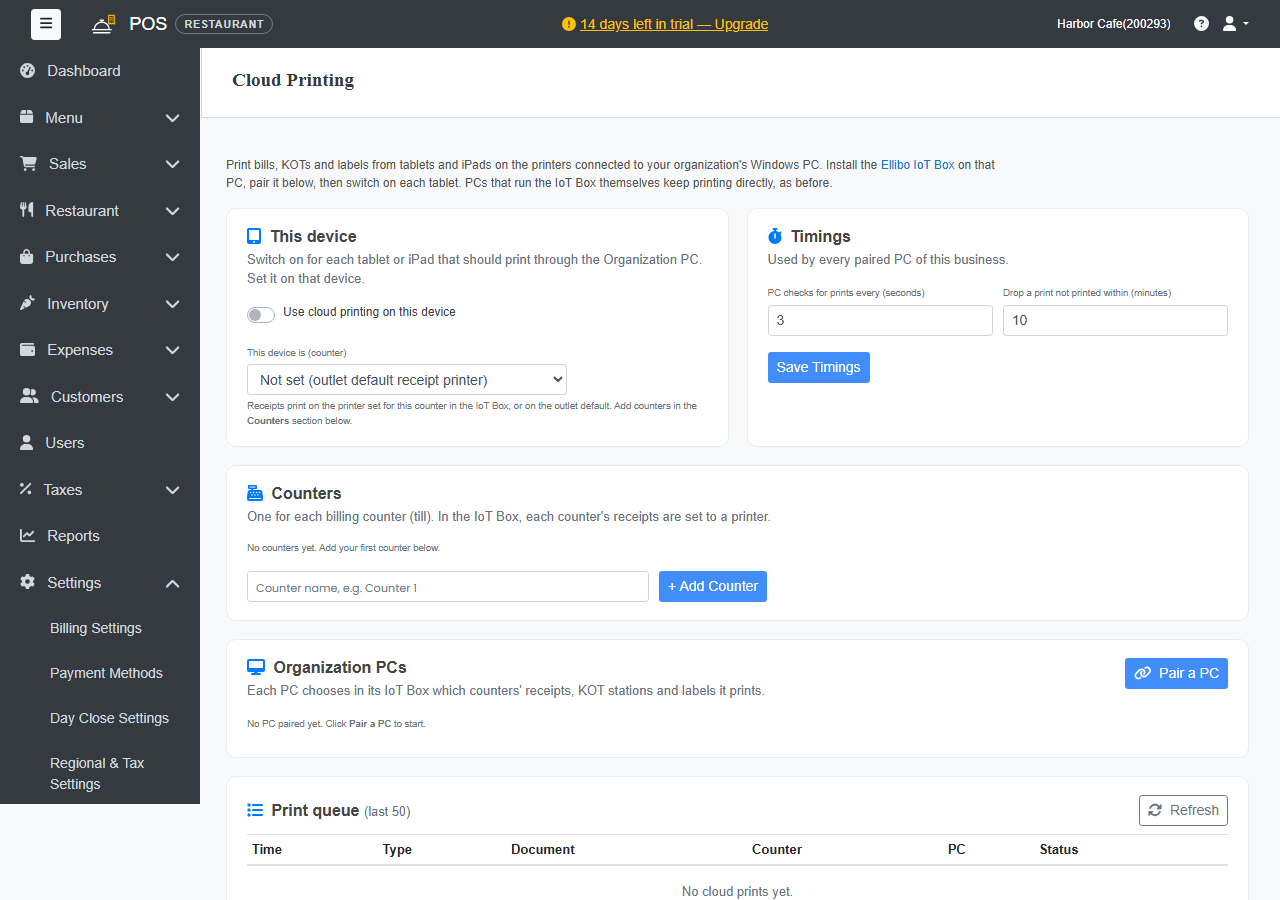
- Go to Settings › Cloud Printing.
- Under Counters, enter a name, for example Counter 1, and click + Add Counter.
2. Pair the Organization PC
- Under Organization PCs, click Pair a PC. A pairing code appears.
- On the Organization PC, open the Ellibo IoT Box, go to Cloud Printing › Pair with Ellibo, and enter the code.
- In the IoT Box, choose which counters' receipts, KOT stations and labels this PC prints.
3. Switch on each tablet
On each tablet or iPad, sign in to POS and go to Settings › Cloud Printing:
- Turn on Use cloud printing on this device.
- Under This device is (counter), choose the tablet's counter.
The setting is saved on that device, so do this once on every tablet.
Check the print queue
Print queue lists the last 50 cloud prints with their counter, PC and status. Click Refresh to update it.
Timings
- PC checks for prints every (seconds): how often the Organization PC looks for new prints. The default is 3.
- Drop a print not printed within (minutes): a print that's still waiting after this time is dropped, for example when the PC was off. The default is 10.
The Organization PC must be on, connected to the internet and running the IoT Box for cloud prints to come out.