
Billing settings
Set your currency, rounding, billing screen, receipt, stock tracking and purchase returns, each on its own tab.
Go to Settings › Billing Settings. The settings are grouped in tabs: General, Billing Screen, Receipt, Stock & Purchases, Cash Drawer, Emails and, for restaurants, Reservations. Change what you need on any tab and click Save at the bottom of the page. One Save stores every tab.
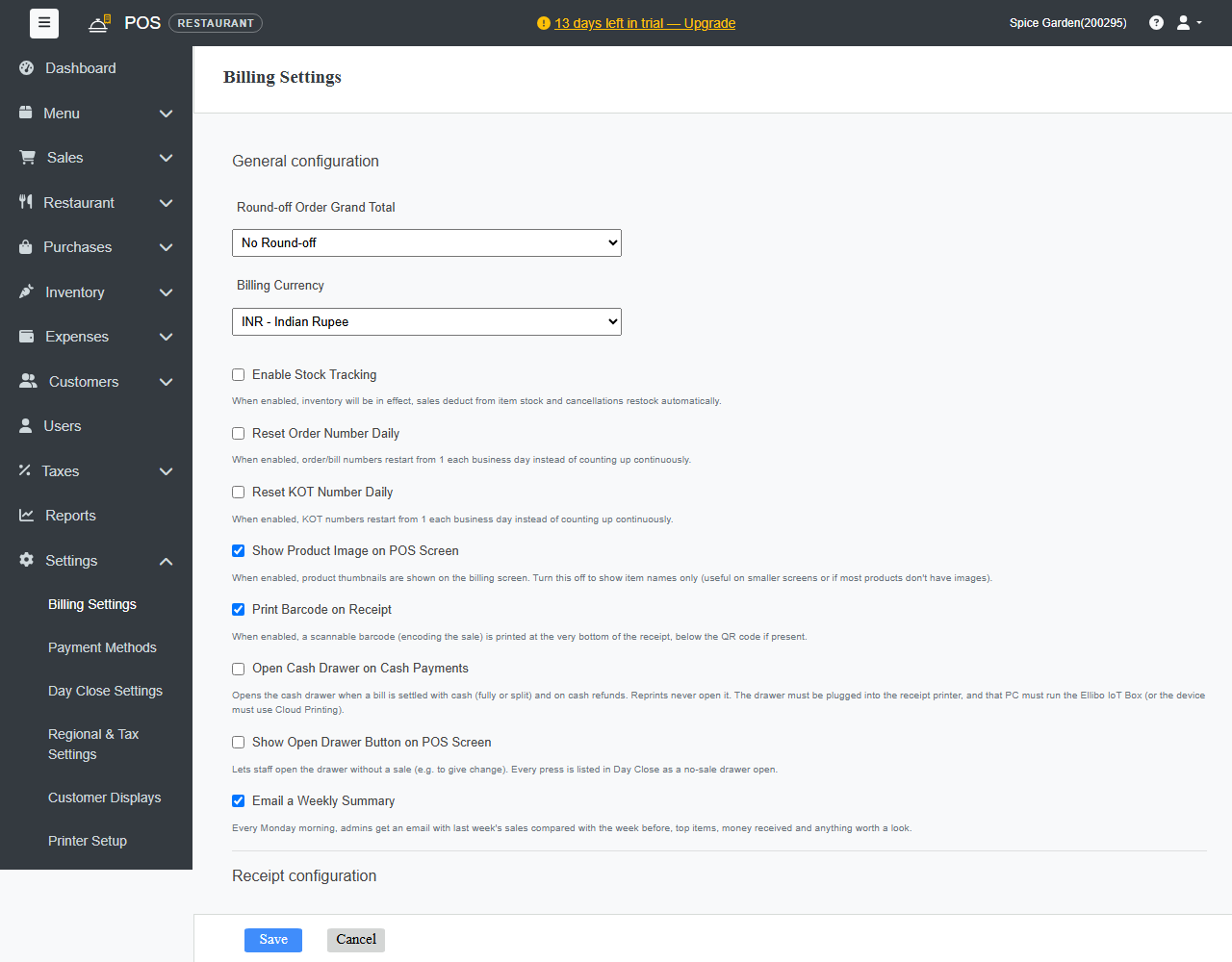
General
| Setting | What it does |
|---|---|
| Business Name | Printed at the top of every receipt. |
| Business Email (for customer replies) | When you email a bill to a customer, or a debit note to a vendor, and they reply, the reply comes to this address. |
| Round-off Order Grand Total | Rounds the bill total, for example to the nearest whole amount. Choose No Round-off to keep exact totals. |
| Billing Currency | The currency on the POS screen, receipts and reports. It's set from your country. Change it only before you start billing. |
Billing Screen
| Setting | What it does |
|---|---|
| POS Billing Screen (retail) | Touch mode with large product cards, or Invoice mode, a compact search-and-add table. |
| Reset Order Number Daily | Bill numbers start again from 1 each business day. |
| Reset KOT Number Daily | KOT numbers start again from 1 each day (restaurants). |
| Show Product Image on POS Screen | Shows product pictures on the billing screen. Turn it off on small screens or if most products have no picture. |
| Captains Can Print the Bill (restaurants) | Lets captains use Save & Print, Split Bill and e-Bill. Off by default. |
| Captains Can Settle Bills (restaurants) | Lets captains take payment with Pay & Settle and print the settled receipt. Off by default. |
Receipt
- Receipt Size: the paper width of your receipt printer.
- Organization Logo: a JPG or PNG up to 500 KB, printed on receipts and e-Bills.
- Payment QR Code and Print QR Code on Receipt: a QR code customers scan to pay.
- Print Barcode on Receipt: prints a barcode of the sale at the bottom of the receipt, so you can scan it later to find the bill.
- Header lines and Footer lines: extra lines, such as your address, opening hours or a thank-you note.
- Print Receipt Automatically When a Bill Is Settled: prints the receipt as soon as you settle. When it's off, the settle window stays open with Print Receipt and Close.
- Print a Kitchen Slip When a Table Is Moved or Merged (restaurants): reprints the table's unfinished KOTs with the new table and MOVED FROM the old one. On unless you turn it off. See Move or merge tables.
Print your GSTIN on every bill: add it under Settings › Regional & Tax Settings › Tax registration number. See Set up taxes.
Stock & Purchases
| Setting | What it does |
|---|---|
| Enable Stock Tracking | Sales take stock off your products, and cancelled sales put it back. Standard plan and above. |
| Items Returned on a Paid Purchase | When you return items to a vendor on a purchase you already paid: Ask each time, The vendor refunds the money, or Keep it as vendor credit for the next bill. |
Cash Drawer
| Setting | What it does |
|---|---|
| Open Cash Drawer on Cash Payments | Opens the drawer when a bill is paid in cash. The drawer must be plugged into the receipt printer, with the Ellibo IoT Box running on that PC. |
| Show Open Drawer Button on POS Screen | Lets staff open the drawer without a sale, for example to give change. Day Close lists every open. |
Emails
Email a Weekly Summary: every Monday, admins get an email comparing last week's sales with the week before.
Reservations
For restaurants: table bookings and the waitlist on the Table View, and booking online. You set how long a table is kept for a booking, when a booking becomes a no-show, your booking times, whether online bookings are confirmed by themselves, and the reminder email. See Table reservations and waitlist.
Features
Extra POS features you can switch on or off. Switched off, they don't show anywhere.
- Favorites on the POS: a Favorites list at the top of the POS categories. See Bill at the counter.
- Happy Hour Prices: lower prices at set times. See Happy hour.
- Combos / Meal Deals: items sold together at one price, with choices. See Combos and meal deals.