
Sales reports
See sales, profit by item, tax, staff and payments for any period, read the Dashboard, and download any report as CSV, Excel or PDF.
Run a report
- Go to Reports.
- Choose a report from the list on the left, or type its name in Find a report.
- Pick the period: Today, Yesterday, Last 7 Days, Last 30 Days, or your own dates. Then click Apply.
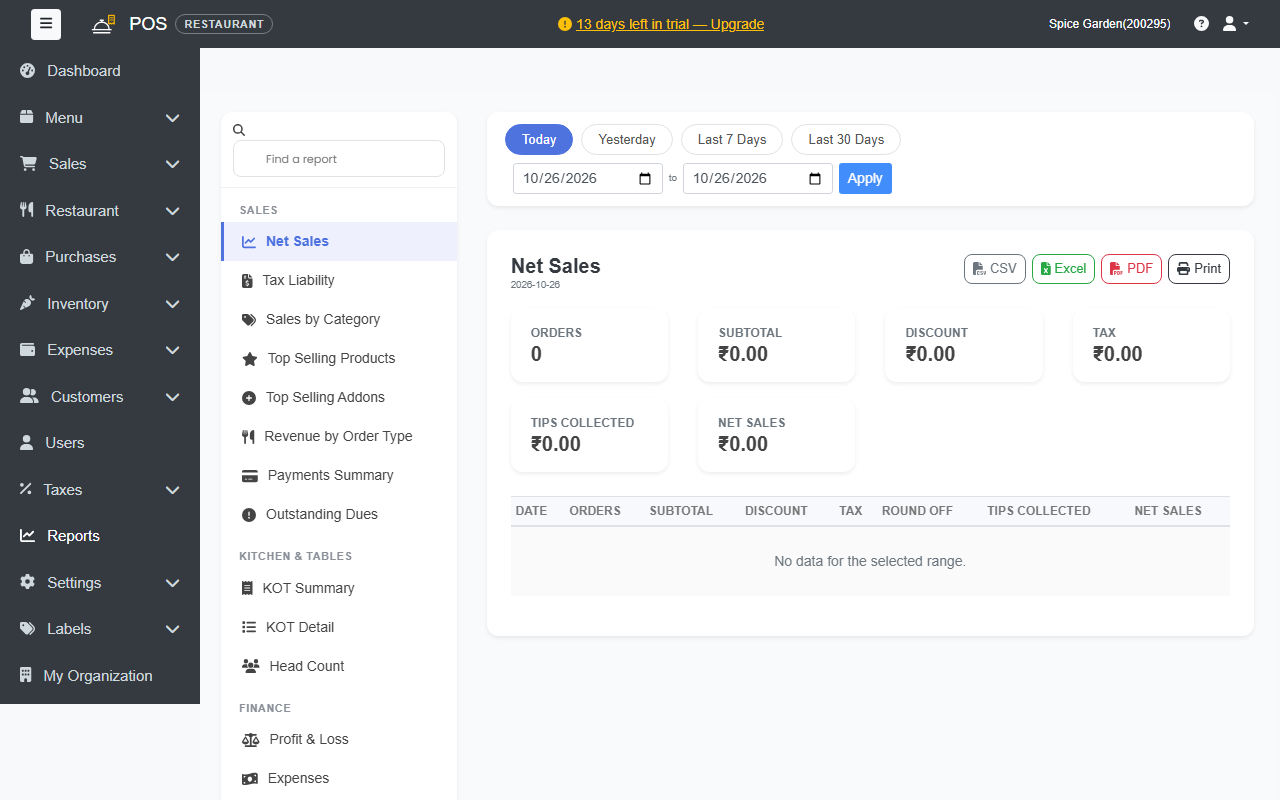
To save or share a report, click CSV, Excel, PDF or Print.
The Free plan includes the everyday sales reports, the Sales Register and the tax summary. Item, discount, staff, hourly, channel, customer, returns, stock and vendor reports, and the Finance reports, are part of the Standard plan and above.
The reports
Sales
- Net Sales: orders, subtotal, discount, tax, tips and net sales by day.
- Tax Liability: tax collected for the period, rate by rate.
- Sales by Category and Top Selling Products: what sells.
- Top Selling Addons (restaurants)
- Revenue by Order Type: dine-in, pickup, delivery and in-store.
- Payments Summary: money received by payment method.
- Outstanding Dues: what customers still owe on Due bills.
- Item-wise Sales & Profit: every product with quantity, discount, net sales, its share of sales, cost, profit and margin. See below.
- Discounts: every bill with a discount, the kind of discount (given by staff or a customer tag) and who gave it, plus items given free.
- Staff Performance: for each person, bills, sales, average bill, items, discounts given, bills cancelled, refunds and exceptions from the Audit trail.
- Sales by Hour: sales for each hour of the day, split by day of the week, with your busiest hour and day.
- Sales by Channel: the POS, QR table orders, your online store and invoices, by order type.
- Customer Sales: each customer's bills, sales, average bill, last visit and tags, whether they are new or returning, and how much was sold to walk-in customers.
- Returns (retail) / Refunds (restaurants): every item returned or refunded, with the reason, how it was refunded and who did it.
- Happy Hour Sales: what each happy hour sold and the price given away. Shows once Happy hour is switched on.
- Combo Sales: combos sold and the choices guests made. Shows once Combos are switched on.
Stock (when stock tracking is on)
- Low Stock
- Stock Summary & Valuation: for each product, the opening stock, purchased, sold, adjusted and closing stock, and the closing stock's value at cost.
- Dead Stock: products in stock that didn't sell in the period, with their value and when they last sold. Choose a long period, for example Last 30 Days or more.
Tax and accounts
- Sales Register: one line per bill with the date, bill number, customer and their tax number, discount, the amount before tax, each tax, other charges (delivery fees and surcharges), round off, the total and how it was paid. Give it to your accountant.
- HSN Summary: sales by HSN / SAC code with the quantity, taxable value and each tax (CGST, SGST, IGST), less returns, ready for Table 12 of your GSTR-1. Add the HSN code to each product under Menu › Products.
Kitchen and tables (restaurants)
- KOT Summary, KOT Detail and Head Count
Restaurant analytics (restaurants, Professional plan and above)
- Menu Engineering: each dish sorted by how well it sells and how much it earns, with what to do. See below.
- Kitchen Prep Times: how long each dish takes from the kitchen ticket to Ready on the Kitchen Display: average, median, longest, how often it takes over 20 minutes, and your slowest hour.
- Sales by Area & Table: bills, guests, sales, sales per guest and average time at the table for each dining area and table.
- Waiter Performance: bills, guests, sales, sales per guest, items, tips, discounts and cancelled bills for each waiter.
When tables are merged, the bill that was brought in shows as Cancelled with the reason Merged into Bill #... and a zero amount. Its items and money count once, on the merged bill.
Finance
- Profit & Loss, Expenses and Purchases
- Purchases by Vendor: purchase bills, returns, payments made in the period, what you owe each vendor now and any credit you have with them.
Day Close
- Past days with their cash counts and differences.
Profit & Loss
The Profit & Loss report shows, for the period:
- Net Sales: sales before tax, less returns and refunds.
- Cost of goods sold: what the items you sold cost you. For restaurants this includes dishes with a recipe (their ingredients) and ingredient wastage. Stock written off and count differences from Stock Adjustments are included too.
- Gross Profit, then your Expenses by category, then Net Profit or Net Loss, each with its % of net sales.
- Previous Period and Change: the same lines for the same number of days just before, for example last month next to this month.
Purchases are not taken off profit. Stock you buy counts only when it is sold.
A product's cost is worked out like this:
- Restaurants: a dish with a recipe uses its ingredients at their average cost.
- Otherwise, the average cost on your purchases of that product.
- Otherwise, the Cost Price on the product. Set it when you add or edit a product (each variation has its own).
The cost is saved on each bill, so a past month's profit does not change later. Bills from before costs were saved show today's cost as Estimated Cost. If Sales Without Cost appears, some products sold have no cost yet, so profit is shown too high. Add a Cost Price or record a purchase for them.
Item-wise Sales and Profit
Every product sold in the period, best seller first. Net Sales is after discounts (including the product's share of a bill discount) and without tax, less returns. Add-ons are in Top Selling Addons.
Cost, Profit and Margin use the cost saved on each bill, worked out as in Profit & Loss. A product with no cost for some or all of its sales shows No cost price or Part without cost and no profit, so the figures are never too high. Add a Cost Price to fix it.
Menu Engineering
Every dish sold in the period is put in one of four classes, by its Menu Mix (its share of all dishes sold) and its Profit per Dish (price after discount, without tax, less its cost):
| Class | Sells | Earns | What to do |
|---|---|---|---|
| Star | well | well | Keep it: feature it, keep the quality and the price. |
| Plowhorse | well | little | Raise the price a little or lower its cost. |
| Puzzle | little | well | Promote it: better place on the menu, suggest it, rename it. |
| Dog | little | little | Drop it or rework it. |
A dish sells well when its Menu Mix is at least 70% of an equal share, and earns well when its profit per dish is at or above the average. Dishes without a cost show No cost: add a Cost Price or a recipe to class them. Combos and add-ons are left out. Use a month or more for a fair picture.
The Dashboard
The Dashboard opens when you sign in. Use Today, Yesterday or More (Last 7 Days, Last 30 Days, This Month, Last Month or your own dates) to change the period.
- Right now: tables in use, open orders, kitchen tickets still being made and how long the oldest has waited, online orders waiting for approval, today's bookings, low stock, today's exceptions from the Audit trail, and whether the day or register is open, with the cash difference at the last close. It refreshes every minute.
- Sales: total sales and sales by order type, then orders, average bill, guests and sales per guest (restaurants) or items per bill (retail), discounts, refunds and tax. Each shows the change against the period before, for example ▲ 12%.
- Gross profit: Admins only. The same figure as the Profit & Loss report, marked estimated when some products have no cost. It doesn't show until you keep cost prices.
- Charts and lists: sales by hour or by day with the period before as a dotted line, where orders came from (POS, QR table orders, online store, invoices), best sellers, top categories, products not sold, sales by staff, waiters and time at a table (restaurants) or top customers and unpaid invoices (retail), and your busiest hours (7 days or more).
- Open orders: today's open bills, and bills from earlier days that were never settled or cancelled in their own tab. Settle or cancel those so the list stays clean.
Staff see only Right now and the open orders, with no amounts. Captains go straight to the POS.
Weekly summary email
Turn on Email a Weekly Summary in Billing settings. Every Monday, admins get last week's sales compared with the week before.