
Printers and the IoT Box
Print receipts, KOTs and labels straight away, with no print window, using the free Ellibo IoT Box on your Organization PC.
You can print from POS in two ways:
- Browser printing: works on any device with no setup. Each print opens the browser's print window, where you click Print.
- Ellibo IoT Box: a free program for the Windows PC your printers are connected to (your Organization PC). Bills, KOTs and labels print the moment you click, with no print window. It also opens the cash drawer.
Set up the IoT Box
Go to Settings › Printer Setup on the Organization PC and follow the three steps:
- Click Download IoT Box and install it. Leave Run automatically on Windows startup ticked.
- In the IoT Box, choose your receipt printer and your label printer. Restaurants also choose a printer for each kitchen station.
- Click Test next to each printer, then Save Settings.
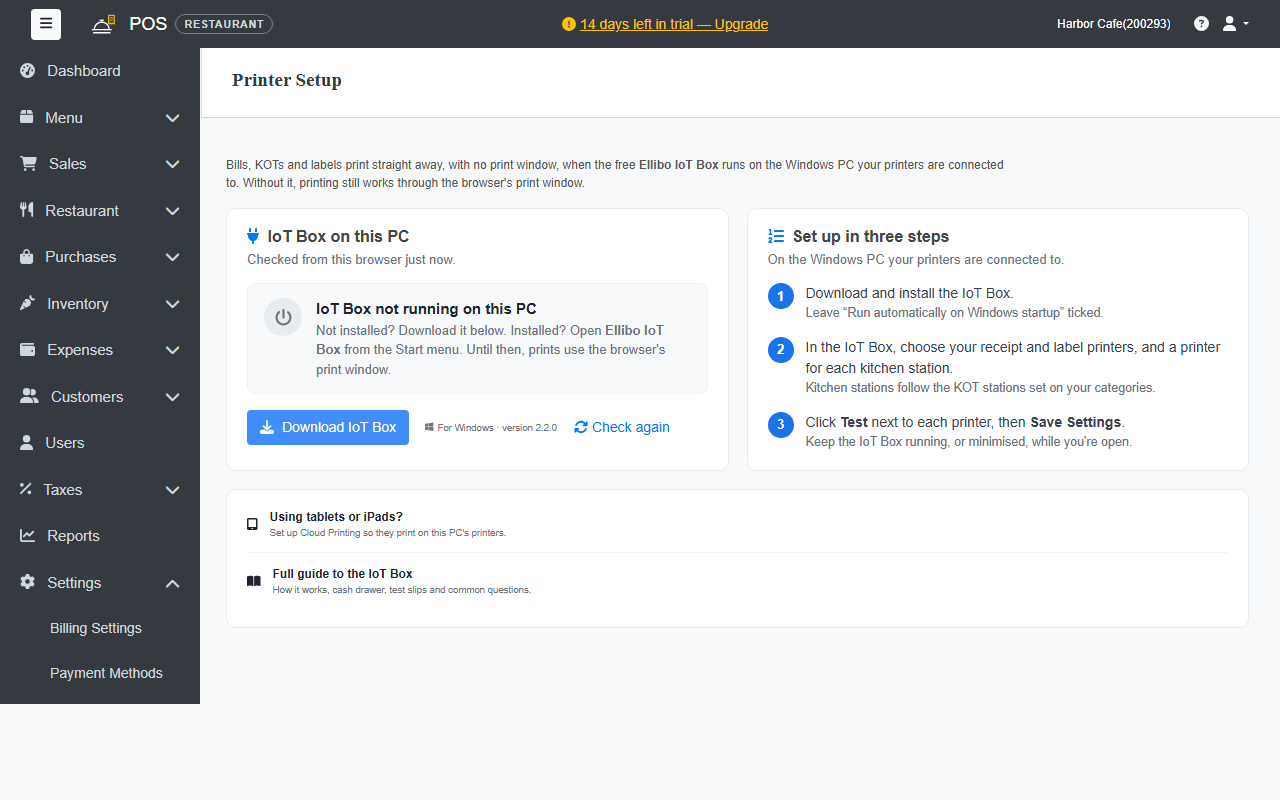
Keep the IoT Box running, or minimised, while you're open. The IoT Box on this PC panel shows whether it's running. Click Check again after you start it.
For printing with no print window, add a printer for every printing job you use: receipts, KOTs and labels. A job without a printer falls back to the browser's print window.
Cash drawer
Plug the cash drawer into the receipt printer. Then turn on Open Cash Drawer on Cash Payments in Billing settings. The drawer opens when a bill is paid in cash and on cash refunds. Reprints never open it.
Tablets, iPads and other PCs
Devices that aren't connected to the printers can print through the Organization PC. See Cloud printing.
More about the IoT Box
See the full IoT Box guide for how it works, test slips and common questions.