
Lead scoring
Give leads points for what matters to you and see at a glance who is Hot, Warm or Cold, so your team calls the best leads first.
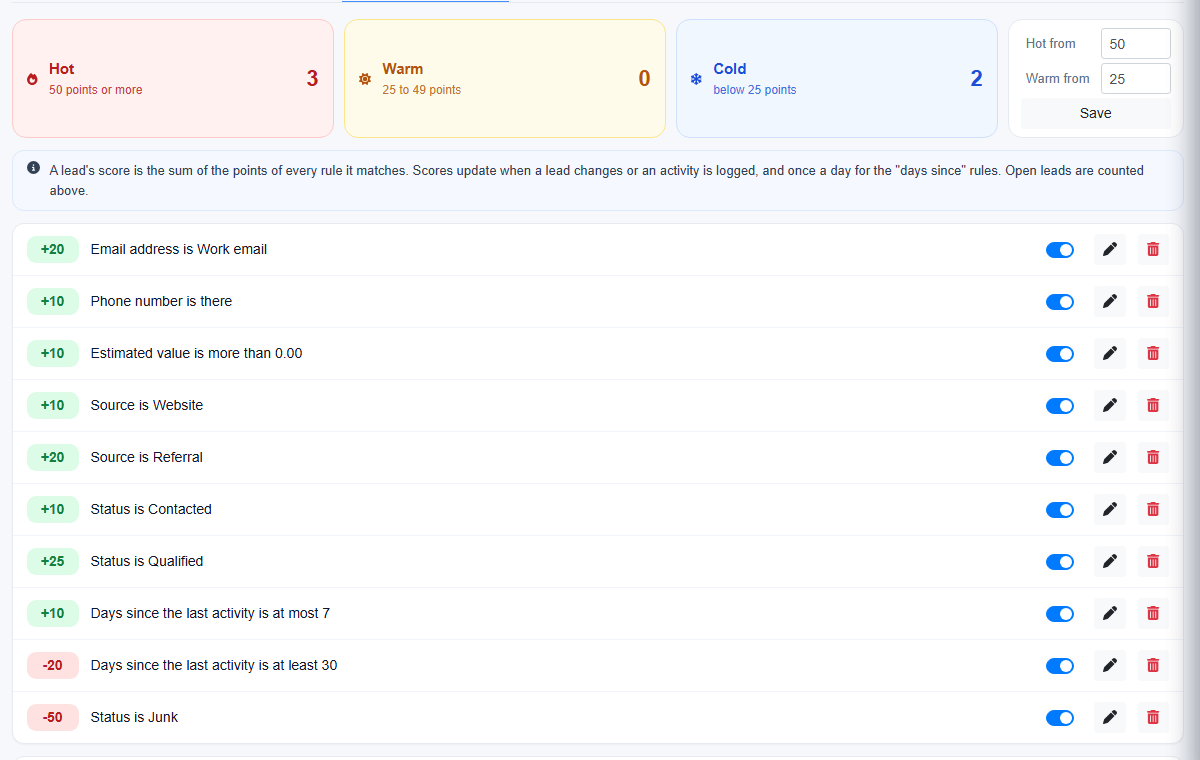
Each lead gets a score: the total of the points of every rule it matches. Go to Settings › Automation › Lead scoring.
Start with the suggested rules
Click Use suggested rules. You get rules such as:
| Rule | Points |
|---|---|
| Email address is a work email | +20 |
| Phone number is there | +10 |
| Source is Website / Referral | +10 / +20 |
| Status is Contacted / Qualified | +10 / +25 |
| An activity in the last 7 days | +10 |
| No activity for 30 days | −20 |
| Status is Junk | −50 |
Change the points with the pencil, or switch a rule off.
Add your own rule
Under Add a rule, choose what earns the points, such as Estimated value is at least 100,000 or Tags has any of VIP. Enter the points (from −100 to 100) and click Add rule.
Hot, Warm and Cold
The cards at the top show how many open leads are Hot, Warm and Cold. Change where Hot and Warm start under Hot from and Warm from, then click Save.
Scores in your lists
- Leads shows a Score column with 🔥 Hot, ☀ Warm and ❄ Cold badges.
- Filter with All scores, and click the Score heading to see the highest first.
- A lead's page shows its score next to its name.
- The Excel download includes the score.
Scores update when a lead changes or an activity is logged, and once a day for the "days since" rules. Click Recalculate all scores now after big changes.
A workflow can check the Score, for example alert the managers when a lead added from the website has a score of 50 or more. See Automate follow-ups with workflows.
Lead scoring is available in the Professional plan and above.