
Automate follow-ups with workflows
When something happens to a lead, deal or activity, CRM creates the follow-up, sends the email or alerts your team by itself.
A workflow is a rule: when something happens, if it matches what you choose, then CRM does the steps for you. For example: when a lead is added, if the source is Website, then plan a call for its owner today.
Go to Settings › Automation. Admins and managers can create workflows.
Start from a ready-made workflow
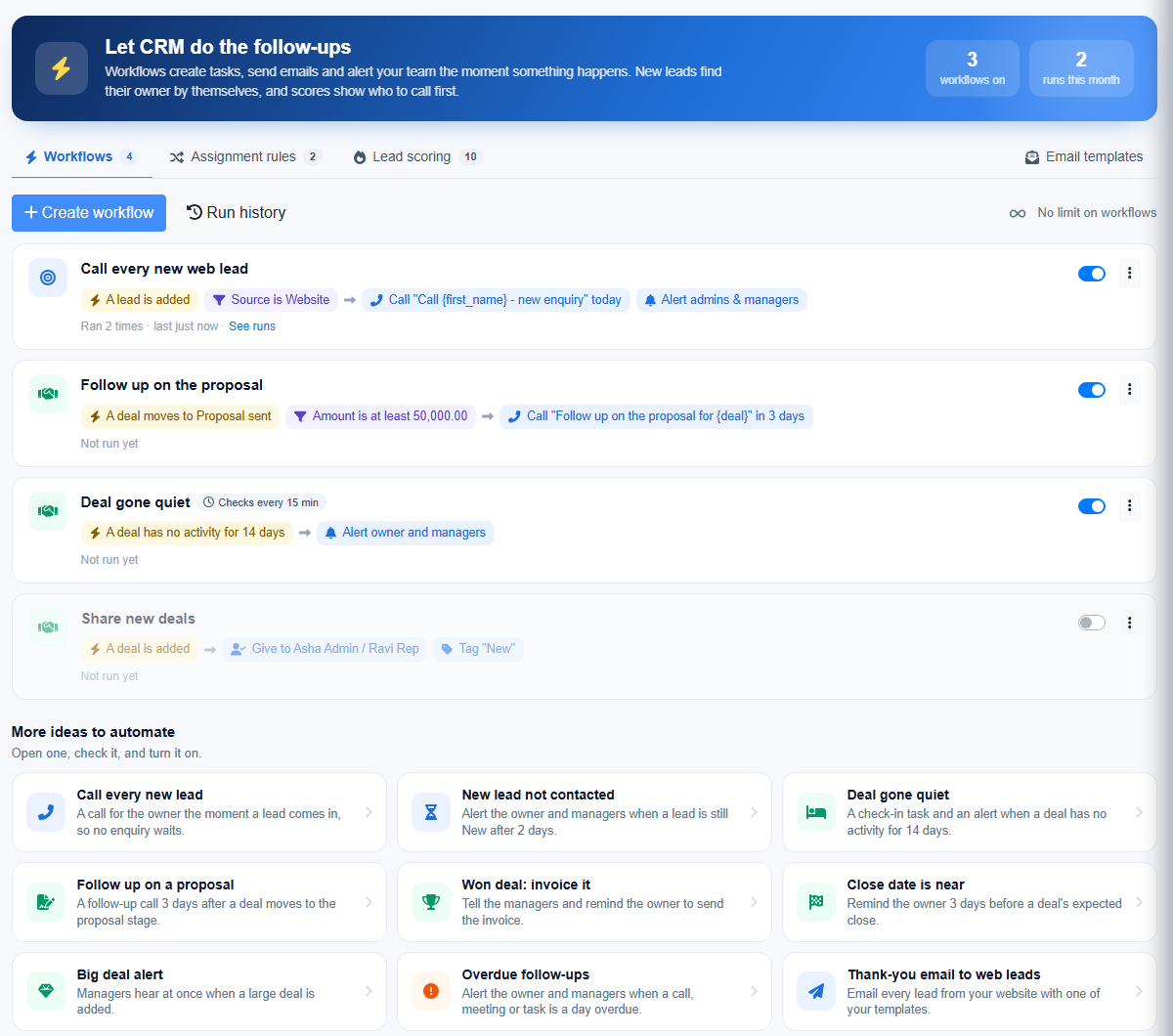
The Workflows tab shows ideas you can use straight away:
| Idea | What it does |
|---|---|
| Call every new lead | Plans a call for the owner the moment a lead comes in. |
| New lead not contacted | Alerts the owner and managers when a lead is still New after 2 days. |
| Deal gone quiet | A check-in task and an alert when a deal has no activity for some days. |
| Follow up on a proposal | A follow-up call 3 days after a deal moves to the proposal stage. |
| Won deal: invoice it | Tells the managers and reminds the owner to send the invoice. |
| Close date is near | Reminds the owner a few days before a deal's expected close. |
| Big deal alert | Managers hear at once when a large deal is added. |
| Overdue follow-ups | Alerts the owner and managers when a call, meeting or task is a day overdue. |
| Thank-you email to web leads | Emails every new website lead with one of your templates. |
Click one, check the steps, change anything you like, and click Save workflow.
Create your own
- Click Create workflow and give it a name.
When: choose Leads, Deals or Activities, then what starts it:
- a lead is added, changed, given to someone, or its status changes;
- a deal is added, changed, moves to a stage, is won or lost, or is given to someone;
- timed: a lead is still New after some days, a deal has no activity for some days, a deal's expected close is near or has passed, an activity is overdue.
- If (optional): click Add a condition, such as Source is Website or Amount is at least 50,000. Choose whether all of them or any of them must match.
- Then: click Add a step. You can add up to 10:
| Step | What it does |
|---|---|
| Create a follow-up | A call, meeting, task or email to do, for the record's owner or someone else, due the same day or later. |
| Send an email | Sends one of your email templates to the lead, or to the deal's contact. |
| Alert someone | A bell alert (and an email, if they keep those on) for the owner, the admins and managers, or one person. |
| Update a field | Sets a lead's status, or moves a deal to another open stage. |
| Change the owner | Gives the record to one person, or to several people who take turns. |
| Add a tag | Tags the lead or deal, such as VIP. |
- Leave the switch On and click Save workflow.
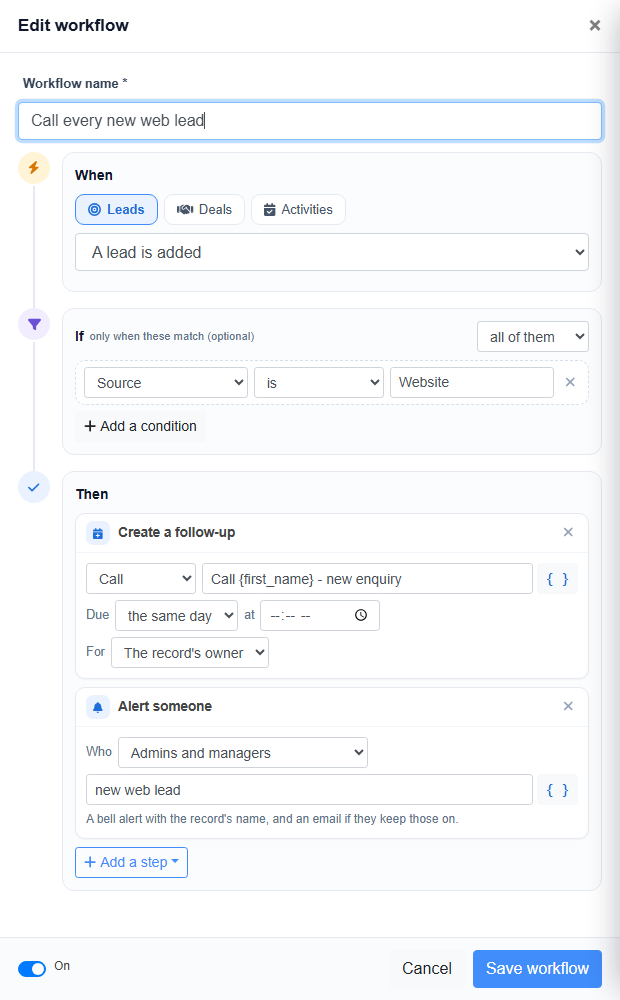
In a follow-up, alert or email, click { } to insert a field, such as {first_name}, {deal}, {amount} or {close_date}. CRM fills it in for each record.
How workflows run
- Workflows for "added", "changed", "moves to a stage", "won" and "lost" run as soon as the change is saved.
- Timed workflows are checked every 15 minutes. Each one acts once for each record. They only act on what becomes due after you turn them on, so old records don't flood your team with alerts.
- What a workflow changes never starts another workflow, so nothing can loop.
- Emails come from your business, replies go to the record's owner, and they count toward your daily email limit. Each email is kept on the record's history.
- Everything a workflow does is shown on the record's history, with the workflow's name.
On, off and run history
- Use the switch on a workflow to turn it off or on.
- Run history lists each run: the record, what was done, and anything that couldn't be done (for example, a lead with no email address).
- Click ⋮ to Edit, Duplicate or Delete a workflow.
The Free plan runs 2 workflows, Standard runs 10, and Professional and Business have no limit. Sending emails needs email templates (Standard plan and above).