
Connect Authorize.Net
Take cards and eCheck through your Authorize.Net gateway and merchant account - API Login ID, Transaction Key, sandbox testing and going live. No webhook needed.
Authorize.Net takes cards and eCheck through your own merchant account, in the US, Canada, UK, Europe and Australia (USD, CAD, GBP, EUR, AUD, NZD, CHF, DKK, NOK, PLN, SEK). Customers pay on Authorize.Net's secure hosted form, and Ellibo checks each payment with Authorize.Net - no webhook needed.
Before you start
- An Authorize.Net gateway account (usually set up with your merchant bank or a reseller).
- For testing, a free sandbox account at developer.authorize.net - it has its own Login ID and key.
- You must be an admin of the business in Ellibo.
Step 1: Get your API Login ID and Transaction Key
- Sign in to the Merchant Interface (or your sandbox account).
- Go to Account › Account and API Settings › Security Settings › API Credentials & Keys.
- Copy the API Login ID.
- Under Create New Key(s), choose New Transaction Key and click Submit.
- Authorize.Net emails you a PIN. Enter it, and copy the Transaction Key that appears.
The new Transaction Key is shown only once. Your old key keeps working for 24 hours unless you tick Disable Old Transaction Key Immediately - don't tick it if another system still uses the old one.
Step 2: Connect in Ellibo
- Open Settings › Integrations › Payments.
- On the Authorize.Net tile, click Connect.
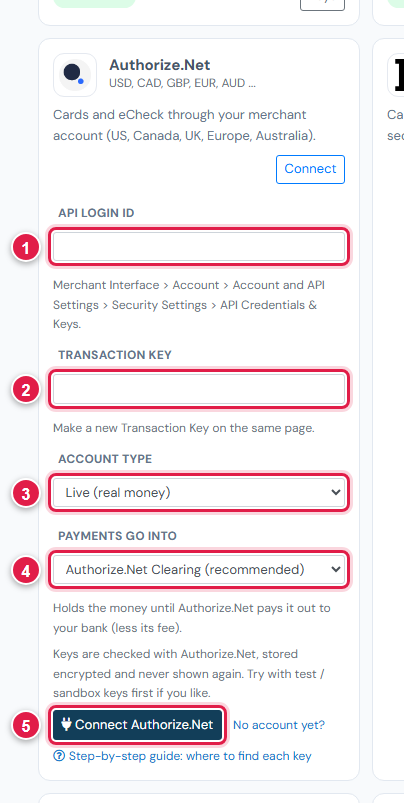
| # | Field | What to enter |
|---|---|---|
| 1 | API Login ID | From API Credentials & Keys |
| 2 | Transaction Key | The key you just made |
| 3 | Account type | Test / sandbox for sandbox keys, Live for production |
| 4 | Payments go into | Keep Authorize.Net Clearing (recommended) |
| 5 | Connect Authorize.Net | Click it |
Step 3: Try a sandbox payment
- With sandbox keys connected, open a small invoice's Pay now link and choose Authorize.Net.
- Pay with the test card
4111 1111 1111 1111and any future date. - Check the invoice shows Paid, then cancel the test receipt.
Step 4: Go live
In Ellibo, click Keys, paste your production API Login ID and Transaction Key, set Account type to Live, and Save.
Fees, payouts and refunds
- Authorize.Net settles a batch each day; the money reaches your bank through your merchant account, usually in one or two working days. Record payouts in Accounting › Online Payments.
- Refund with the Refund button in Ellibo. A card payment can only be refunded after it has settled (usually the next day).
If something goes wrong
| Problem | Fix |
|---|---|
| Keys not accepted | Sandbox and production are separate accounts. Match Account type to the keys. |
| Keys stopped working | A new Transaction Key was made and the old one expired. Paste the new one. |
| Refund refused | The payment hasn't settled yet. Try again tomorrow. |
See also Fix payment problems.