
Connect WooCommerce
Bring WooCommerce orders into Ellibo as invoices with their payments, add customers, match products by SKU and send stock levels back - REST API keys, permalinks and fixes for common errors.
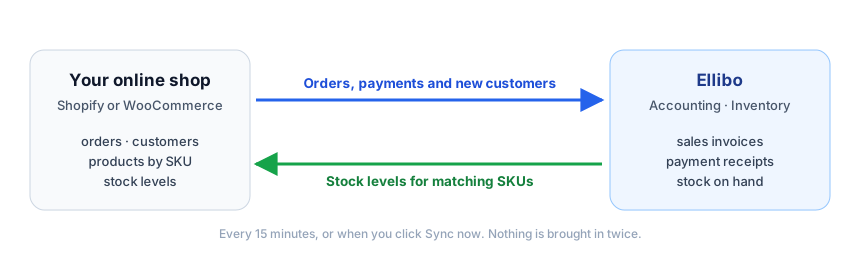
With WooCommerce connected:
- Orders come in as sales invoices every 15 minutes (or when you click Sync now), with the payment when the order is Processing or Completed.
- New customers are added (an existing customer with the same email is reused).
- Products are matched by SKU, and Ellibo's stock levels go back to WooCommerce for matching SKUs.
Before you start
- Your store must use HTTPS (an address starting with
https://). - In WordPress, Settings › Permalinks must be anything except Plain - for example Post name. The WooCommerce REST API doesn't work with plain permalinks.
- You need to be a WordPress Administrator (or Shop Manager).
- Use the same SKU for a product in WooCommerce and its item in Ellibo.
Step 1: Make REST API keys in WooCommerce
- In WordPress, go to WooCommerce › Settings › Advanced › REST API.
- Click Add key (or Create an API key).
- Description: Ellibo. User: an administrator. Permissions: Read/Write.
- Click Generate API key.
- Copy the Consumer key (
ck_…) and the Consumer secret (cs_…). The secret is shown only once.
If that WordPress user is deleted or loses rights, the key stops working. Pick an admin who will stay.
Step 2: Connect in Ellibo
- Open Settings › Integrations › Connected apps.
- On WooCommerce, click Connect WooCommerce.
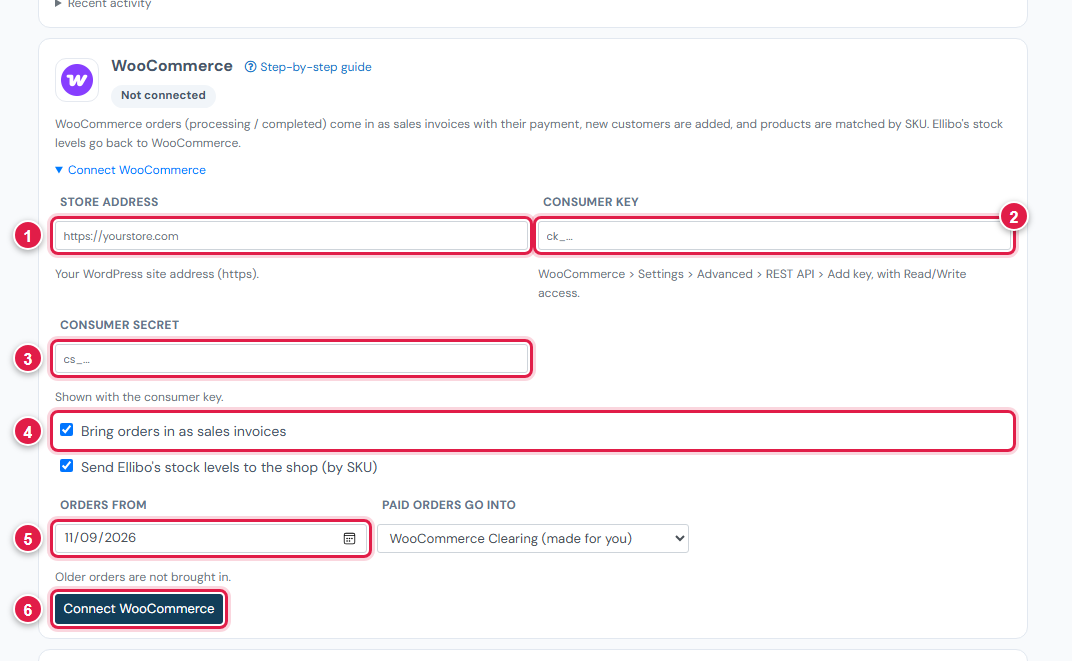
| # | Field | What to enter |
|---|---|---|
| 1 | Store address | Your site, e.g. https://yourstore.com |
| 2 | Consumer key | ck_… |
| 3 | Consumer secret | cs_… |
| 4 | Bring orders in / Send stock levels | Keep both ticked, or untick what you don't want |
| 5 | Orders from | The first day to bring orders in |
| 6 | Connect WooCommerce | Click it (choose Paid orders go into first if you want a bank account instead of WooCommerce Clearing) |
Step 3: Check the first sync
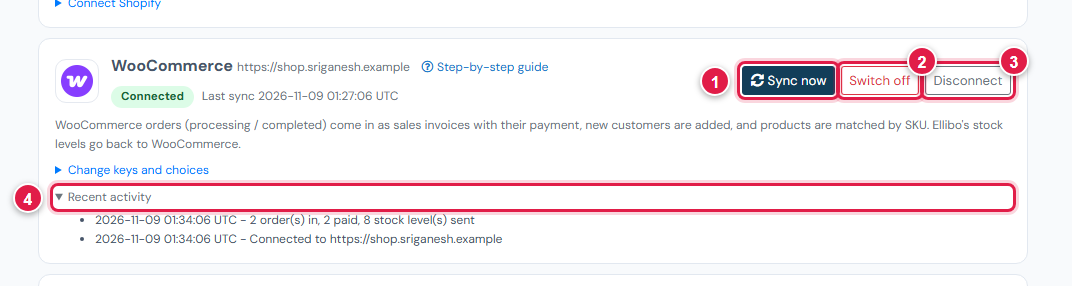
Click Sync now, then open Recent activity: it shows how many orders came in, were paid or were skipped, and how many stock levels were sent.
How orders come into your books
| Order status in WooCommerce | In Ellibo |
|---|---|
| Processing, Completed | A sales invoice (reference WooCommerce #1234) with a payment receipt |
| On hold | A sales invoice, unpaid until you record the payment |
| Pending payment, Cancelled, Failed | Skipped |
Shipping comes in as its own line. Orders in a currency other than your books' are skipped and listed in Recent activity.
How stock goes back
Each sync, Ellibo sets Stock quantity (and turns on Manage stock) for WooCommerce products whose SKU matches an Ellibo item that tracks stock - only when the quantity changed. Ellibo's quantity replaces WooCommerce's, so keep stock in Ellibo.
If something goes wrong
| Problem | Fix |
|---|---|
| WooCommerce did not accept these keys (they need Read/Write) | Make a new key with Read/Write. |
| 401 error, or Consumer key is missing | Your web host removes the login header. Ask your host to allow the Authorization header, or add this line to your site's .htaccess: SetEnvIf Authorization "(.*)" HTTP_AUTHORIZATION=$1 |
| Is the WooCommerce REST API on? / 404 | Set Settings › Permalinks to anything but Plain, then try again. |
| Enter your store address starting with https:// | The store needs HTTPS. Ask your host for a free SSL certificate. |
| A security plugin blocks it | Allow requests to /wp-json/wc/v3/ in the plugin, or allow Ellibo's server. |