
Connect Xero
Send your Ellibo customers, sales invoices and payments to Xero automatically, so your accountant can keep working in Xero - connect, set the account codes, and check the first sync.
Some businesses run their sales in Ellibo while their accountant works in Xero. With Xero connected, new sales invoices (with their customers) are sent to Xero every 15 minutes, and optionally the payments against them. You keep invoicing in Ellibo; Xero stays up to date.
Before you start
- A Xero organisation, and a Xero login that's allowed to connect apps to it (usually the adviser or standard user with full access).
Ask your accountant which account codes to use:
- a sales account (Xero's default is often 200 Sales);
- a tax account for the tax on your invoices - usually your sales tax/GST/VAT liability account;
- a bank account for payments (often 090 Business Bank Account).
You find them in Xero under Accounting › Chart of accounts.
Step 1: Connect
- Open Settings › Integrations › Connected apps.
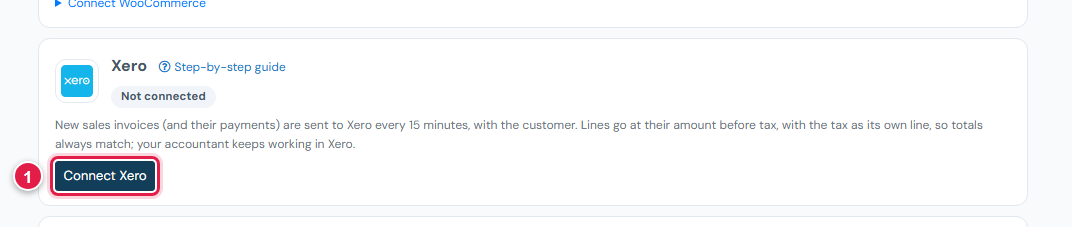
- On Xero, click Connect Xero (1).
- Sign in to Xero, choose your organisation, and click Allow access.
- You come back to Ellibo, and Xero shows Connected with your organisation's name.
See "Xero is being switched on for Ellibo"?
The Xero connection isn't open for your account yet. Try again later, or contact support.
Step 2: Set the account codes
After connecting, Xero shows a small form:
| Field | What to enter |
|---|---|
| Sales account code | The revenue account for your sales, e.g. 200 |
| Tax account code | The account for the tax on your invoices. Blank means the sales account - ask your accountant |
| Bank account code | The bank account payments go to in Xero, e.g. 090 |
| Send payments too | Tick to send payment receipts against the invoices |
Click Save.
What is sent, and how
- From the day you connect. Invoices dated before that day are not sent.
- Customers are added to Xero as contacts the first time they're needed, with their email and tax number.
- Invoices keep your Ellibo invoice number and date, and are created as Awaiting payment (approved).
- Lines go at their amount before tax, and the tax goes as its own line to the tax account code, so the totals always match Ellibo exactly. Your accountant may prefer to adjust the tax coding in Xero for returns.
- Payments (if ticked) are added against the invoice in Xero, to the bank account code.
- Each invoice and payment is sent once. If you edit an invoice in Ellibo after it was sent, change it in Xero too.
Check the first sync
- Click Sync now.
- Open Recent activity: 2 invoice(s) and 1 payment(s) sent, plus any problems.
- In Xero, open Business › Invoices and find them by number.
If something goes wrong
| Problem | Fix |
|---|---|
| The connection has expired - connect Xero again | Xero asks you to re-allow access if Ellibo hasn't connected for 60 days, or someone removed the connection in Xero. Click Disconnect, then Connect Xero again. |
| An invoice wasn't sent: account code … | The account code doesn't exist in your Xero chart, or is archived. Fix the code and click Sync now. |
| A payment wasn't sent | Check the bank account code is a bank account in Xero, and that payments to it are allowed. |
| Duplicate contact names | Xero needs unique contact names. Ellibo adds the customer number when a customer has no email. |