
Connect PayPal
Let customers pay with their PayPal balance, cards and Pay Later through your own PayPal Business account - Client ID and Secret, webhook, sandbox testing and going live.
PayPal lets customers pay with their PayPal balance, cards and Pay Later, in most countries. It's a good choice when customers abroad already use PayPal.
Currencies: USD, EUR, GBP, AUD, CAD, JPY, CHF, SGD, HKD, NZD, SEK, NOK, DKK, PLN, CZK, HUF, ILS, MXN, PHP, THB, TWD, BRL, MYR. PayPal is shown only for invoices in these currencies.
Before you start
- A PayPal Business account (a personal account can't go live). Confirm your email and link a bank account.
- A free PayPal developer login - the same email and password - at developer.paypal.com.
- You must be an admin of the business in Ellibo.
Step 1: Get your Client ID and Secret
- Sign in at developer.paypal.com.
- Open Apps & Credentials.
- Use the Sandbox / Live switch at the top to choose test or live.
- Under REST API apps, open Default Application, or click Create App and give it a name such as Ellibo.
- Copy the Client ID and the Secret.
Sandbox and live credentials are different. Ellibo works out which ones you pasted.
Step 2: Connect in Ellibo
- Open Settings › Integrations › Payments.
- On the PayPal tile, click Connect.
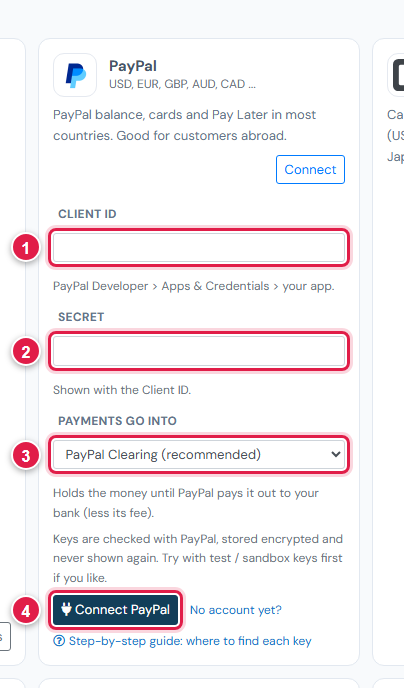
| # | Field | What to enter |
|---|---|---|
| 1 | Client ID | From your app |
| 2 | Secret | From your app |
| 3 | Payments go into | Keep PayPal Clearing (recommended) |
| 4 | Connect PayPal | Click it |
Step 3: Add the webhook
- In Ellibo, under Your gateways › PayPal, click Copy next to Webhook URL.
- At developer.paypal.com, open your app (same Sandbox / Live mode) and scroll to Webhooks › Add Webhook.
- Paste the address and tick Checkout order approved (
CHECKOUT.ORDER.APPROVED) and Payment capture completed (PAYMENT.CAPTURE.COMPLETED). You can also tick Payment capture declined and Payment capture pending. - Save.
Step 4: Try a sandbox payment
- At developer.paypal.com, open Testing Tools › Sandbox Accounts. Use the personal (buyer) account; click ⋮ › View/Edit Account to see its email and password.
- With sandbox credentials connected, open a small invoice's Pay now link and choose PayPal.
- Sign in with the sandbox buyer and pay.
- Check the invoice shows Paid, then cancel the test receipt.
Step 5: Go live
- Switch to Live at developer.paypal.com and copy the live Client ID and Secret.
- In Ellibo, click Keys, paste them, and Save.
- Add the webhook again on the live app.
Fees, payouts and refunds
- Payments land in your PayPal balance straight away (new accounts may see holds). Moving money to your bank is done in PayPal. Record each transfer as a payout in Accounting › Online Payments.
- Refund with the Refund button in Ellibo.
If something goes wrong
| Problem | Fix |
|---|---|
| PayPal did not accept these keys | Copy the Client ID and Secret again, from the same app and mode. |
| PayPal isn't offered on an invoice | The invoice's currency isn't one PayPal takes. |
| Payment approved but not captured | Click Check payment on the invoice; Ellibo finishes the capture. |
See also Fix payment problems.