
Bank transfer
Let customers pay you by bank transfer with no gateway and no fee. They tell you the reference, you confirm it, and the payment is recorded against the invoice.
You don't need a payment gateway to be paid online. Switch on bank transfer, and every Pay now page shows your bank details. The customer pays you directly, and the money reaches your bank account with no gateway fee.
The only difference from a gateway: Ellibo can't see your bank account, so it can't know by itself that the money arrived. The customer tells you ("I have paid"), you check your bank, and you confirm.
Switch it on
- Open Settings › Integrations › Payments.
- Scroll to Without a gateway.
- Tick Show bank transfer details and type them (1): account name, bank, account number, and the codes your customers need - for example the routing number (US), sort code (UK), IBAN and BIC/SWIFT (Europe and abroad).
- Keep Customers can tell me "I have paid" ticked, and choose the bank account this money reaches (2) - the account in your books that matches those bank details.
- Click Save (3).
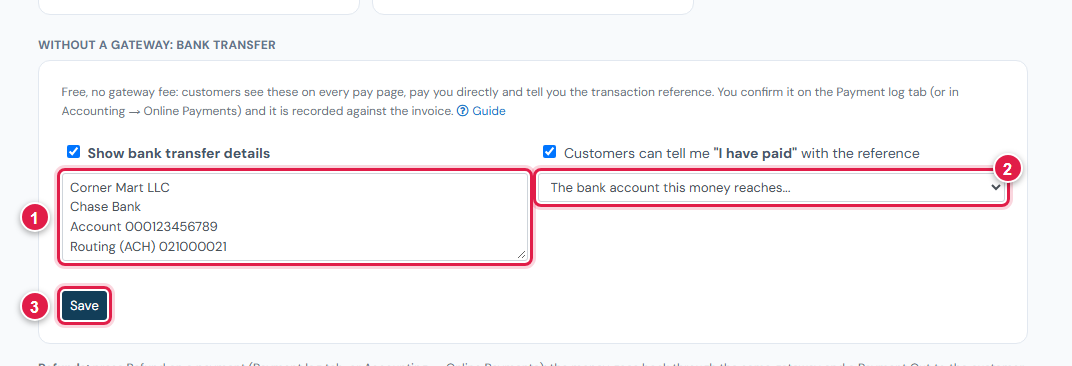
From now on, every Pay now page shows Pay by bank transfer, even when no gateway is connected.
What the customer does
- They open the invoice's Pay now link.
- They pay by bank transfer, with the invoice number as the payment reference.
- Back on the page they open I have paid by bank transfer, enter the amount paid (1) and the transaction reference (2) from their bank app, and click Tell … I have paid (3).
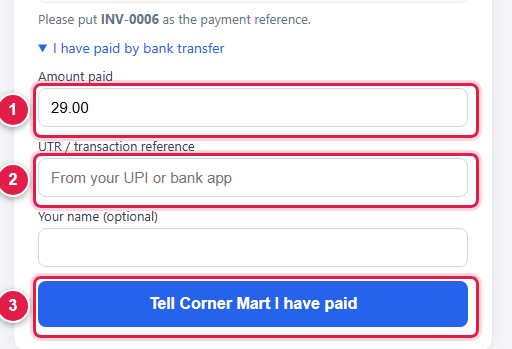
The page then says you're checking it, and that they don't need to pay again.
Confirm the payment
The Payment log tab shows a count on its name when something is waiting. To confirm:
- Open Accounting › Online Payments. Customers say they have paid lists each message with the invoice, the customer, the reference and the amount.
- Check your bank statement or bank app for that reference and amount.
- Under Reached, check the bank account is right.
- Click Confirm. A payment receipt is recorded against the invoice, and the Pay now page shows it as paid.
- If the money never arrived, click Not received. The invoice stays unpaid. Contact the customer.
Anyone whose role in Accounting allows confirming payments (admins can always). Set it in Accounting › Settings › Roles & permissions.
Turn off "I have paid"
Untick Customers can tell me "I have paid". Customers still see your bank details, and you record their payments yourself in Accounting, as for any bank payment.
Good to know
- Bank details are shown to anyone with the invoice's link. Use a business account.
- Confirmed payments are normal receipts. You can match them in bank reconciliation.
- You can use this together with gateways: customers see both and choose.