
Connect Square
Take cards, Apple Pay, Google Pay and Cash App Pay through your own Square account - access token, location, webhook subscription, sandbox and going live.
Square lets customers pay by card, Apple Pay, Google Pay and Cash App Pay. It works in the US, Canada, UK, Ireland, Spain, France, Australia and Japan, for invoices in USD, CAD, GBP, EUR, AUD and JPY.
Before you start
- A Square seller account in one of those countries.
- A free developer account at developer.squareup.com, using the same login.
- You must be an admin of the business in Ellibo.
Step 1: Get your access token
- Sign in at developer.squareup.com and open the Developer Console.
- Click + to create an application (name it, for example, Ellibo), or open an existing one.
- In the left pane, open Credentials.
- Choose Sandbox (to test) or Production at the top.
- Click Show next to Access token and copy it.
- Optional: to take payments for one location, open Locations in the left pane and copy its Location ID. Blank means your main location.
Step 2: Connect in Ellibo
- Open Settings › Integrations › Payments.
- On the Square tile, click Connect.
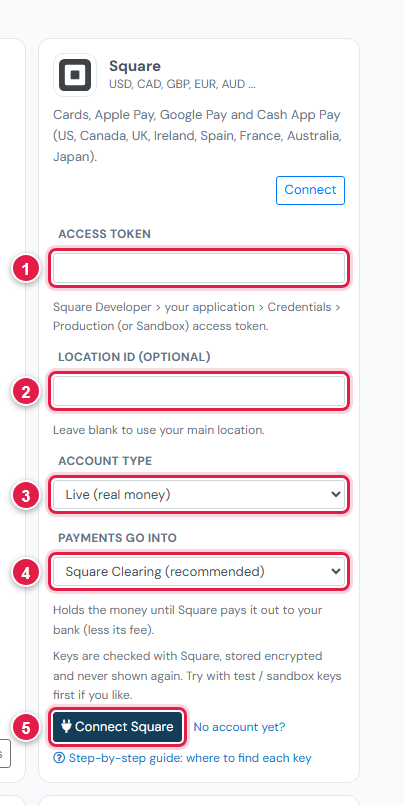
| # | Field | What to enter |
|---|---|---|
| 1 | Access token | Sandbox or production token |
| 2 | Location ID | Optional |
| 3 | Account type | Test / sandbox or Live, to match the token |
| 4 | Payments go into | Keep Square Clearing (recommended) |
| 5 | Connect Square | Click it |
Step 3: Add the webhook
- In Ellibo, under Your gateways › Square, click Copy next to Webhook URL.
- In the Developer Console, open your application › Webhooks › Subscriptions › Add subscription (same Sandbox / Production mode).
- Give it a name, paste the address, and tick
payment.updated. - Save.
Step 4: Try a sandbox payment
- With a sandbox token connected, open a small invoice's Pay now link and choose Square.
- Pay with the test card
4111 1111 1111 1111, CVV111, any future date, and a valid postcode. - Check the invoice shows Paid, then cancel the test receipt.
Square's sandbox checkout is simpler than the real one, so some screens may look different.
Step 5: Go live
- Copy the Production access token.
- In Ellibo, click Keys, paste it, set Account type to Live, and Save.
- Add the webhook subscription again in Production.
Fees, payouts and refunds
- Square pays out to your bank, usually the next working day. Record payouts in Accounting › Online Payments.
- Refund with the Refund button in Ellibo.
If something goes wrong
| Problem | Fix |
|---|---|
| Token not accepted | Sandbox tokens need Account type: Test, production tokens Live. |
| Square isn't offered | The invoice's currency isn't USD, CAD, GBP, EUR, AUD or JPY. |
| Payment goes to the wrong location | Add the right Location ID. |
See also Fix payment problems.