
Connect Cashfree Payments
Take UPI, cards, net banking, wallets and Pay Later in rupees through your own Cashfree account - API keys, webhook, test payment and going live.
Cashfree Payments lets customers pay in rupees by UPI, cards, net banking, wallets and Pay Later. It works for invoices from every Ellibo app, POS bills and bookings.
Before you start
- A Cashfree Payments account. Sign up at cashfree.com. Test (sandbox) keys are ready straight away. For live payments, finish KYC on the Merchant Dashboard: PAN, business documents, bank account, and your website or app.
- You must be an admin of the business in Ellibo.
Step 1: Get your API keys
- Sign in to the Cashfree Merchant Dashboard and open Payment Gateway.
- Choose the Test (sandbox) or Production environment.
Go to Developers › API Keys.
- Test keys are made for you.
- For production, click Generate API Keys and confirm with the code Cashfree sends.
- Click the eye icon (View API Key) and copy the App ID (also called Client ID) and the Secret Key.
Step 2: Connect in Ellibo
- Open Settings › Integrations › Payments.
- On the Cashfree Payments tile, click Connect.
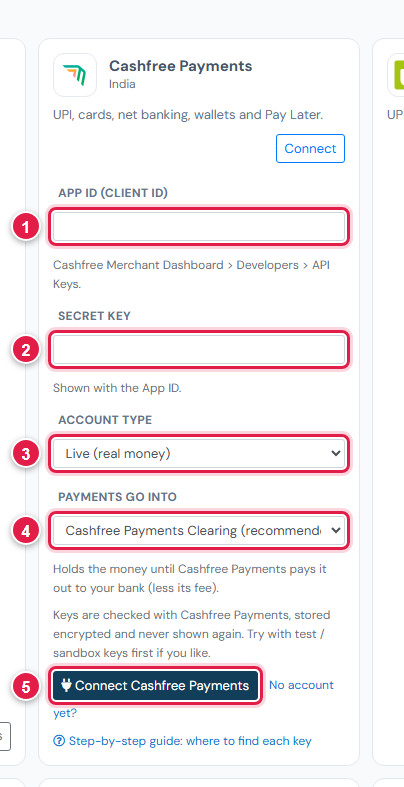
| # | Field | What to enter |
|---|---|---|
| 1 | App ID (Client ID) | The App ID |
| 2 | Secret Key | The Secret Key |
| 3 | Account type | Test / sandbox for test keys, Live for production keys |
| 4 | Payments go into | Keep Cashfree Payments Clearing (recommended) |
| 5 | Connect | Click it |
Step 3: Add the webhook
- In Ellibo, under Your gateways › Cashfree Payments, click Copy next to Webhook URL.
- In the Cashfree dashboard, go to Developers › Webhooks and add a webhook endpoint.
- Paste the address and choose the Payment Link events (paid, partially paid, cancelled, expired).
- Save. Cashfree signs each message with your Secret Key, so there's no extra secret to copy.
Step 4: Try a test payment
- Open the Pay now link of a small invoice and choose Cashfree Payments.
Pay with Cashfree's test details:
- UPI:
testsuccess@gocash(ortestfailure@gocash); - Card: see Test card details in Cashfree's developer docs.
- UPI:
- Check the invoice shows Paid in Ellibo, then cancel the test receipt.
Step 5: Go live
- When KYC is approved, generate Production keys.
- In Ellibo, click Keys, paste them, set Account type to Live, and Save.
- Add the webhook again in Production.
Fees, payouts and refunds
- Cashfree pays out to your bank on its schedule (usually T+1 or T+2 working days). Record payouts in Accounting › Online Payments.
- Refund with the Refund button in Ellibo.
- Cashfree is for rupee invoices only. Invoices in other currencies show other gateways.
If something goes wrong
| Problem | Fix |
|---|---|
| Keys not accepted | Check Account type: sandbox keys need Test, production keys need Live. |
| Keys stopped working | Someone reset them in Cashfree - the old secret stops working at once. Paste the new pair. |
| Paid but not showing | Check the webhook is in the same environment as your keys. Click Check payment on the invoice. |
See also Fix payment problems.