
Connect PhonePe
Take UPI from any app, cards and net banking on the PhonePe checkout - Client ID, Client Secret, webhook, testing and going live.
PhonePe Payment Gateway lets customers pay in rupees by UPI (from any UPI app), cards and net banking. It suits businesses whose customers mostly pay by UPI.
Before you start
- A PhonePe Business account with the Payment Gateway activated. Sign up at phonepe.com/business-solutions and finish KYC.
- Your keys must be the newer kind: Client ID, Client Secret and Client Version. If your dashboard shows a Salt Key and Salt Index instead, you have older keys - ask PhonePe support for the new Standard Checkout credentials.
- Test (UAT) keys are usually given by PhonePe's integration team on request.
Step 1: Get your keys
- Sign in to the PhonePe Business Dashboard.
- Go to Developer Settings.
- Copy the Client ID, Client Secret and Client Version (often 1).
Step 2: Connect in Ellibo
- Open Settings › Integrations › Payments.
- On the PhonePe tile, click Connect.
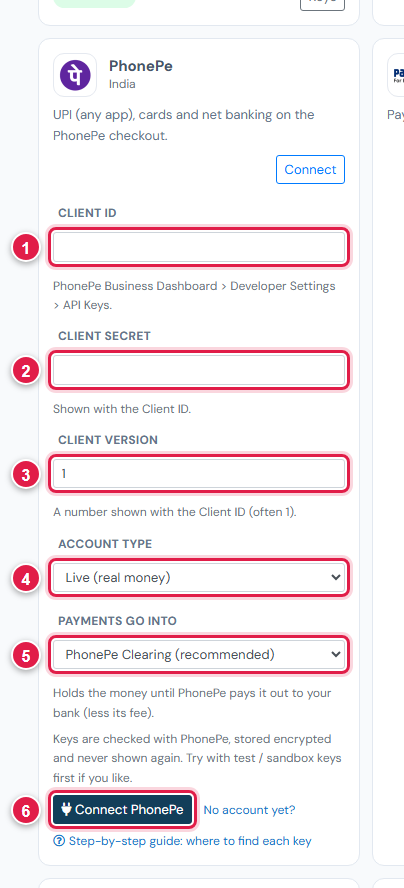
| # | Field | What to enter |
|---|---|---|
| 1 | Client ID | From Developer Settings |
| 2 | Client Secret | From Developer Settings |
| 3 | Client Version | The number shown with them, usually 1 |
| 4 | Account type | Test / sandbox for UAT keys, Live for production |
| 5 | Payments go into | Keep PhonePe Clearing (recommended) |
| 6 | Connect | Click it |
Step 3: Add the webhook
- In Ellibo, under Your gateways › PhonePe, click Copy next to Webhook URL.
- In the PhonePe Business Dashboard, turn Test Mode on (for test) or off (for live).
- Go to Developer Settings › Webhook › Create Webhook.
- Paste the address. PhonePe asks for a username and password: make up your own (username 5-20 letters or numbers; password 8-20 characters with letters and numbers).
- Tick
checkout.order.completedandcheckout.order.failed, and save.
Step 4: Try a test payment
- With test keys connected, open a small invoice's Pay now link and choose PhonePe.
- On the test checkout, pay by UPI QR and choose Success, or use the test card in PhonePe's UAT guide.
- Check the invoice shows Paid in Ellibo, then cancel the test receipt.
Step 5: Go live
- In Ellibo, click Keys, paste the production Client ID, Secret and Version, set Account type to Live, and Save.
- Create the webhook again with Test Mode off.
Fees, payouts and refunds
- Payouts follow PhonePe's settlement schedule. Record them in Accounting › Online Payments.
- Refund with the Refund button in Ellibo.
- PhonePe takes rupees only.
If something goes wrong
| Problem | Fix |
|---|---|
| Keys not accepted | Check Account type matches the keys, and that Client Version is the number PhonePe shows. |
| You only have a Salt Key | Those are older keys. Ask PhonePe for Standard Checkout (Client ID / Secret) credentials. |
| Paid but not showing | Check the webhook was made in the same mode. Click Check payment on the invoice. |
See also Fix payment problems.