
Integrations in Ellibo
Where to find Integrations, who can use it, the four kinds of integration, and what each one costs - read this first.
Integrations connects Ellibo to the other services your business uses. One business has one set of integrations, shared by every Ellibo app. Connect a payment gateway once, and Accounting, Inventory, CRM, Subscriptions, Projects, Bookings, Helpdesk, Field Service, Sign, Ecommerce and POS can all use it.
Open Integrations
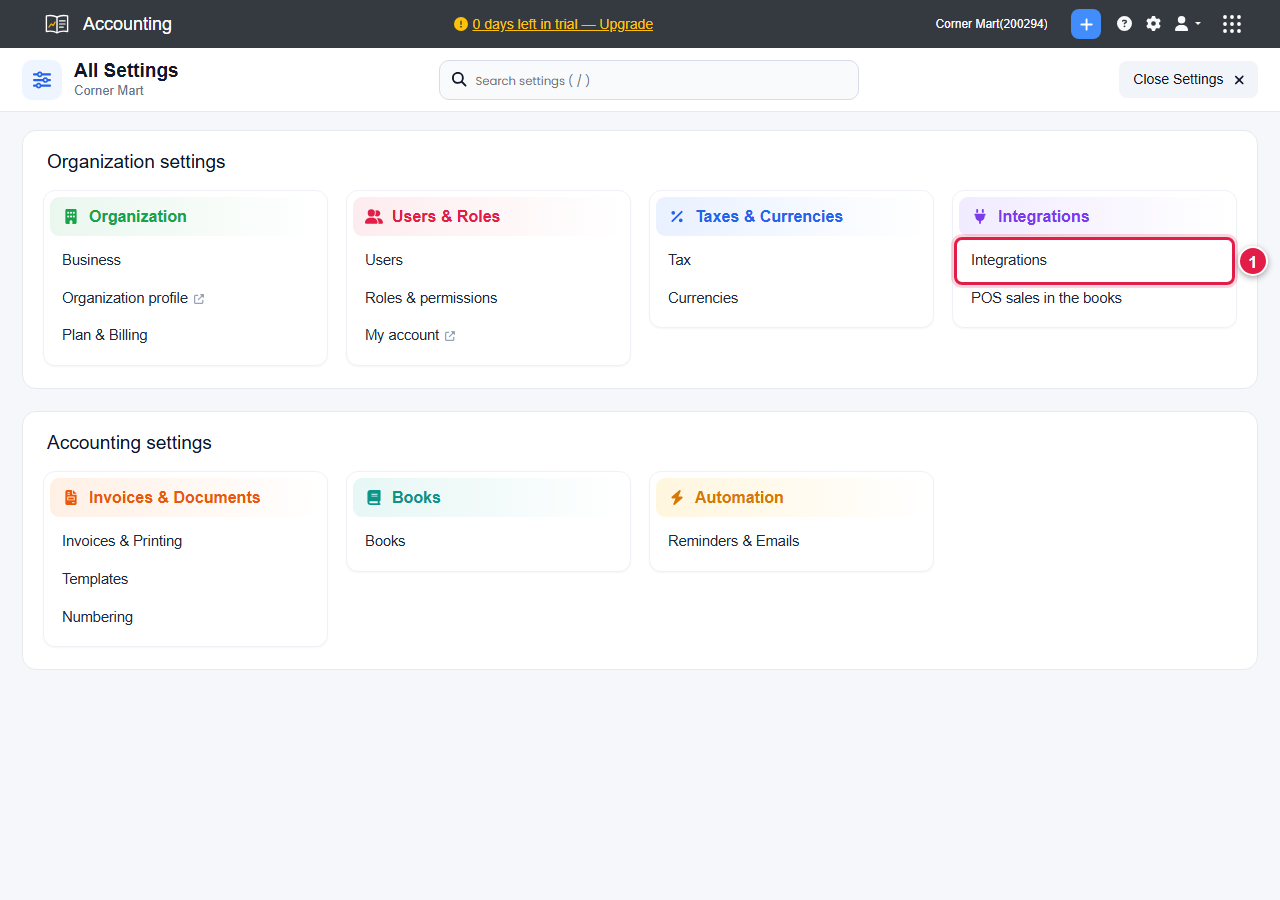
- Open any Ellibo app, for example Accounting.
- Go to Settings.
- Click Integrations (1).
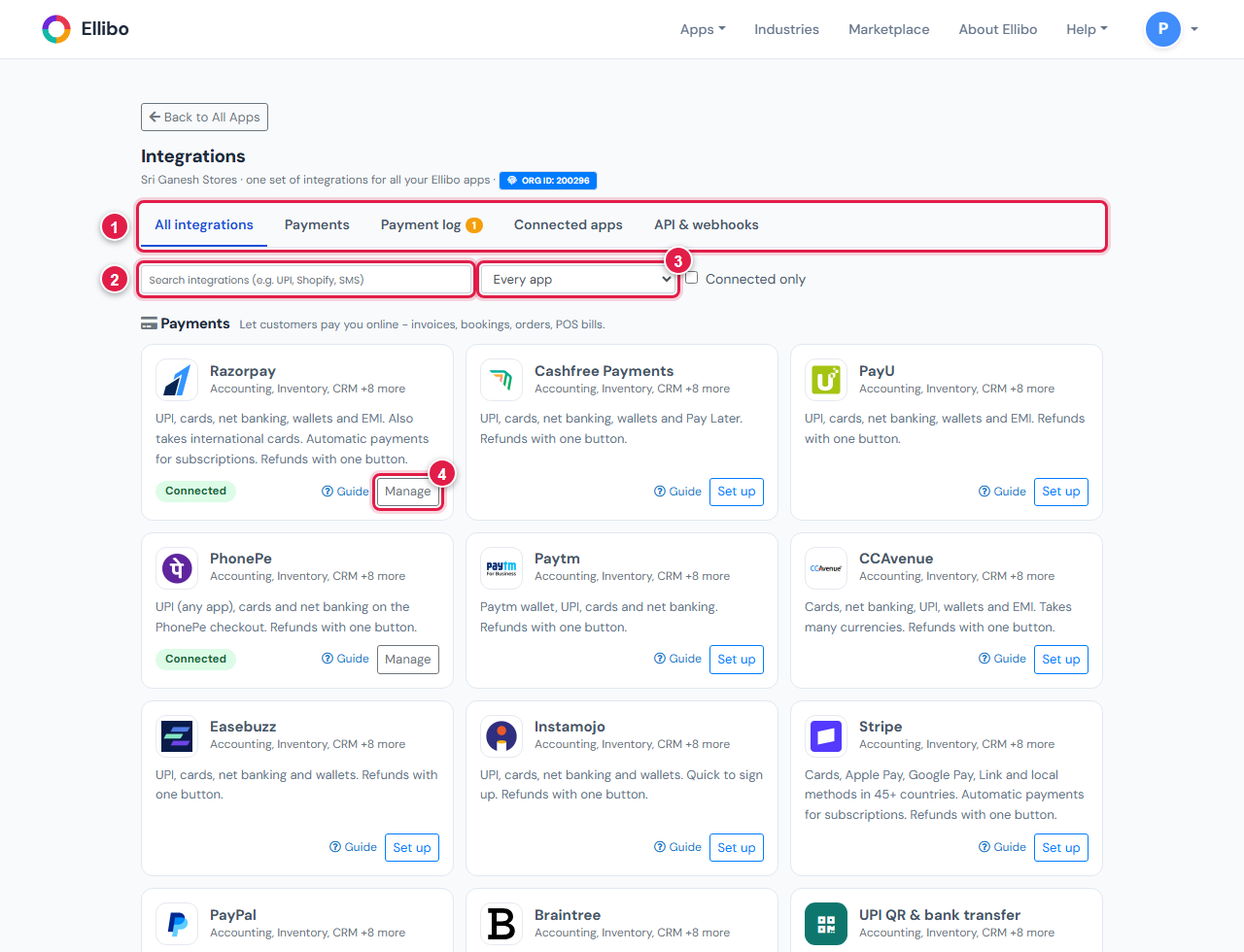
Integrations opens in its own page with five tabs:
| Tab | What it is for |
|---|---|
| All integrations | Everything you can connect, by category. Search for a name (2), pick one app (3), or tick Connected only. Each tile has Set up or Manage (4) and a Guide link. |
| Payments | Your payment gateways, UPI QR and bank transfer details. See Set up online payments. |
| Payment log | Every online payment attempt, "I have paid" messages from customers, refunds and the latest webhooks. |
| Connected apps | Shopify, WooCommerce, Tally. |
| API & webhooks | Slack and Teams alerts, webhooks for Zapier, Make and n8n, and API keys. |
Only an admin of the business: the owner, an Accounting admin, or an admin of any other Ellibo app. Other people see Access denied. Ask your admin to connect things for you.
The four kinds of integration
| Kind | Examples | Where you set it up |
|---|---|---|
| Payment gateways | Razorpay, Cashfree, PhonePe, PayU, Paytm and more | Integrations › Payments |
| Connected apps | Shopify, WooCommerce, Tally | Integrations › Connected apps |
| Built into an app | WhatsApp, SMS, calling, Gmail and Outlook, shipping carriers | In that app's own Settings, for example CRM › Settings › WhatsApp & SMS |
| API and automation | Slack, Microsoft Teams, Zapier, Make, n8n, your own software | Integrations › API & webhooks |
What it costs
- Ellibo charges nothing extra for integrations. They work on every plan, including Free, unless a guide says otherwise (for example, carrier accounts in Ecommerce need the Professional plan).
- You use your own account with each service. Its fees are between you and that company - for example, a payment gateway's fee per payment, or Twilio's price per SMS.
- Money from customers goes straight to your own gateway account, then to your bank. Ellibo never holds your money and never sees card numbers.
Keeping keys safe
- Every key and password you paste is checked with the service first, then stored encrypted. It is never shown again - you only see its last four characters.
- To change a key, open it again and paste the new one. Leave a secret field blank to keep the saved one.
- If you think a key has leaked, make a new key at the service, paste it into Ellibo, and then delete the old key at the service.
Before you start: test first
Most services have a test or sandbox mode, where nothing real is charged. Connect with test keys first, make one test payment or order, check that it shows in Ellibo, then swap in your live keys. Each guide shows how.