
Connect PayU
Take UPI, cards, net banking, wallets and EMI through your own PayU India account - Key and Salt, webhook, test payment and going live.
PayU lets customers pay in rupees by UPI, cards, net banking, wallets and EMI. Customers are taken to PayU's secure page to pay.
Before you start
- A PayU India account. Sign up at payu.in. A test Key and Salt are available straight away. Live keys need your documents and a live website; PayU checks the website, usually in a day or two.
- You must be an admin of the business in Ellibo.
Step 1: Get your Key and Salt
- Sign in to the PayU Dashboard.
- On the menu bar, switch to Test Mode or Live Mode.
Go to Developer (left menu):
- in test mode, open the API Keys tab;
- in live mode, open the API Details tab.
- Click Copy Key and Copy Salt. Use the Salt (32-bit), also called Salt v1.
Regenerated your Salt?
PayU asks you to Activate a new Salt, or it expires after 15 days. Paste the new Salt into Ellibo after you activate it.
Step 2: Connect in Ellibo
- Open Settings › Integrations › Payments.
- On the PayU tile, click Connect.
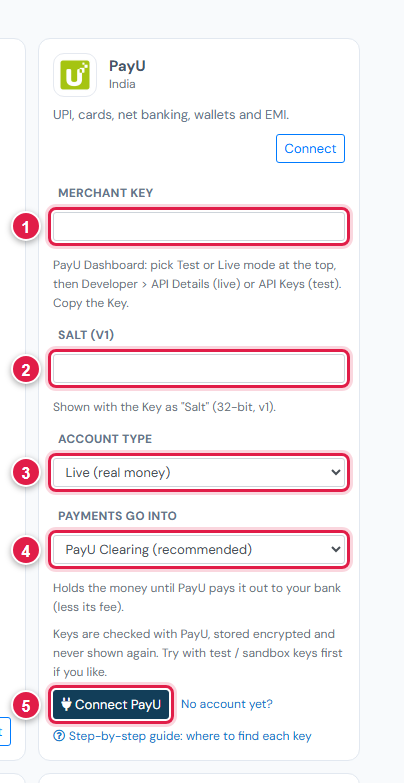
| # | Field | What to enter |
|---|---|---|
| 1 | Merchant Key | The Key |
| 2 | Salt (v1) | The 32-bit Salt |
| 3 | Account type | Test / sandbox or Live, to match the keys |
| 4 | Payments go into | Keep PayU Clearing (recommended) |
| 5 | Connect PayU | Click it |
Step 3: Add the webhook
- In Ellibo, under Your gateways › PayU, click Copy next to Webhook URL.
- In the PayU Dashboard, go to Developer › Webhooks › Create Webhook. (On older dashboards: Settings › Webhooks.)
- Choose type Payments, paste the address, and tick Successful and Failed.
- Save. Test and live have separate webhooks.
Step 4: Try a test payment
- Open a small invoice's Pay now link and choose PayU.
- Pay with PayU's test details: card
5123 4567 8901 2346, any future date, CVV123, OTP123456; or any UPI ID ending in@payu. - Check the invoice shows Paid, then cancel the test receipt.
Step 5: Go live
- When PayU approves your account, copy the live Key and Salt.
- In Ellibo, click Keys, paste them, set Account type to Live, and Save.
- Add the webhook again in live mode.
Fees, payouts and refunds
- Record PayU's payouts in Accounting › Online Payments.
- Refund with the Refund button in Ellibo.
- PayU takes rupees only.
If something goes wrong
| Problem | Fix |
|---|---|
| Keys not accepted | Make sure the Key and Salt come from the same mode as Account type. |
| Works in test but not live | PayU must approve your website and documents before live keys work. |
| Paid but not showing | Add the webhook, then click Check payment on the invoice. |
See also Fix payment problems.