
Slack alerts
Post a message in a Slack channel when an invoice is paid online, an order or booking comes in, a ticket is opened or a deal is created - set up a Slack incoming webhook and pick what to send.
Ellibo can post a short message in any Slack channel when something happens in your business, for example:
Paid online through Stripe: USD 250.00
New web order WEB-1043 from Anna Lee: USD 86.50
New ticket #212: Printer not working (Ravi Kumar)
What you can send
| Area | Events |
|---|---|
| Accounting & Inventory | New invoice, estimate, sales order, credit note, purchase bill, purchase order; payment received or made; new customer, vendor or item |
| Payments | Paid online (any gateway) |
| Ecommerce | New online store order |
| Bookings | New booking |
| Helpdesk | New ticket |
| CRM | New lead, new deal |
| Field Service | New job |
| Subscriptions | New subscription |
Messages arrive within about five minutes. Only things that happen after you add the channel are sent.
Step 1: Make a Slack incoming webhook
You need permission to add apps to your Slack workspace.
- Go to api.slack.com/apps and click Create New App › From scratch.
- Name it Ellibo, pick your workspace, and click Create App.
- In the left menu, open Incoming Webhooks and switch Activate Incoming Webhooks on.
- Click Add New Webhook to Workspace, choose the channel (for a private channel, you must be in it), and click Allow.
- Copy the Webhook URL. It starts with
https://hooks.slack.com/services/.
Anyone with it can post in your channel. If it leaks, Slack switches it off; make a new one and add it again in Ellibo.
Step 2: Add it in Ellibo
- Open Settings › Integrations › API & webhooks.
- Under Team chat alerts, on Slack, click Add a channel.
- Paste the Webhook URL (1).
- Tick what to send (2).
- Click Add (3).
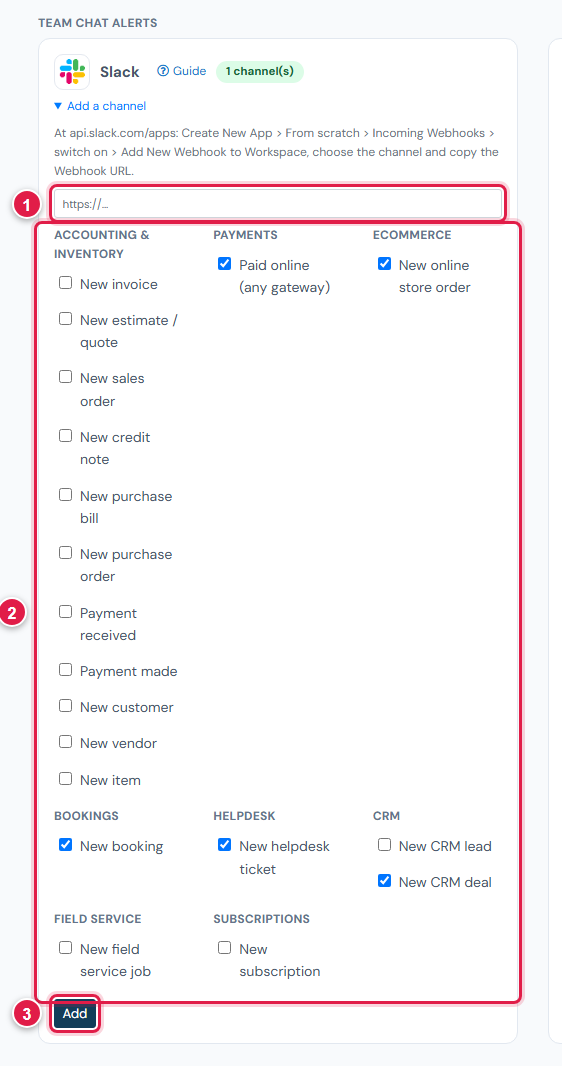
Step 3: Send a test
The channel appears in the Webhooks list below, marked Slack. Click Send test: a test message appears in the channel, and Ellibo shows the address answered 200.
Several channels
Add the same app's webhook for another channel (Slack › your app › Incoming Webhooks › Add New Webhook) - for example payments to #accounts and tickets to #support.
Change or stop
- Switch off pauses a channel. Remove deletes it.
- To change what's sent, remove the channel and add it again with new ticks.
- If Slack stops answering (for example the webhook was deleted in Slack), Ellibo retries for a while and switches the channel off after 20 failures in a row.
If something goes wrong
| Problem | Fix |
|---|---|
| A Slack incoming-webhook address starts with https://hooks.slack.com/ | You pasted another address. Copy the Webhook URL from Incoming Webhooks. |
| The address answered 404 or 410 | The webhook was removed in Slack. Make a new one. |
| The address answered 403 | The app was removed from the channel or workspace. Add it again. |
| Nothing arrives | Check the channel isn't Off in the list, and that something new happened after you added it. |