
Microsoft Teams alerts
Post a card in a Teams channel when an invoice is paid online, an order or booking comes in, a ticket is opened or a deal is created - set up a Teams workflow and pick what to send.
Ellibo can post a short card in a Microsoft Teams channel when something happens in your business: a payment received online, a new order, booking, ticket, lead or deal, and more. The events are the same as for Slack.
Teams uses Workflows for this. (The old Incoming Webhook connectors were retired by Microsoft in 2026.)
Step 1: Make a Teams workflow
- In Microsoft Teams, open Workflows (in the left bar, or from … › Workflows on the channel).
- Search for the template Send webhook alerts to a channel. (It used to be called Post to a channel when a webhook request is received.)
- Name it Ellibo, check the account, and click Next.
- Choose the Team and Channel, and click Add workflow (or Save).
- Copy the web address Teams shows. If you closed the window, open the workflow's details to see it again. It contains
powerplatform.com(older oneslogic.azure.com).
Step 2: Add it in Ellibo
- Open Settings › Integrations › API & webhooks.
- Under Team chat alerts, on Microsoft Teams, click Add a channel.
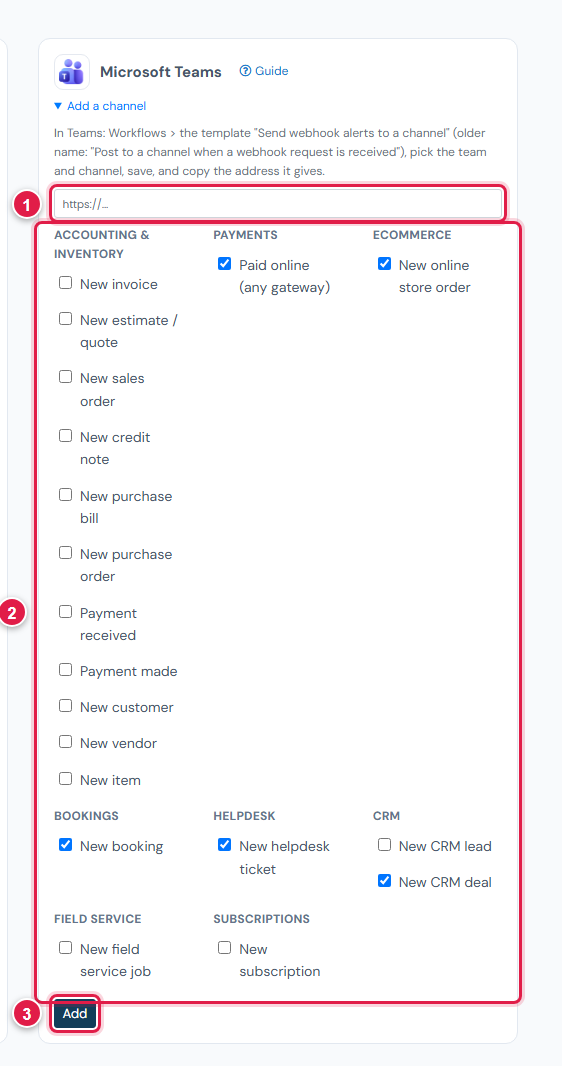
- Paste the workflow's address (1), tick what to send (2), and click Add (3).
Step 3: Send a test
In the Webhooks list below, the channel is marked Teams. Click Send test. A card appears in the channel, posted by the Workflows bot.
Good to know
- Cards are posted by Workflows; Teams doesn't let them use another name or picture.
- Microsoft changed workflow addresses in late 2025. If an old one stops working, open the workflow in Teams, copy its new address, remove the channel in Ellibo and add it again.
- Switch off pauses a channel; Remove deletes it. After 20 failed sends in a row, Ellibo switches it off.
If something goes wrong
| Problem | Fix |
|---|---|
| Paste the address from a Teams workflow … | You pasted the channel's link. Copy the address from the workflow. |
| The address answered 401 or 403 | You picked a template that only accepts certain people. Use Send webhook alerts to a channel. |
| The address answered 404 | The workflow was deleted or turned off. Turn it on, or make it again. |